Deleting a note in DicaNote does not have to be permanent right away. The app sends the item to Trash. From there you restore it or, if you want, remove it for good.
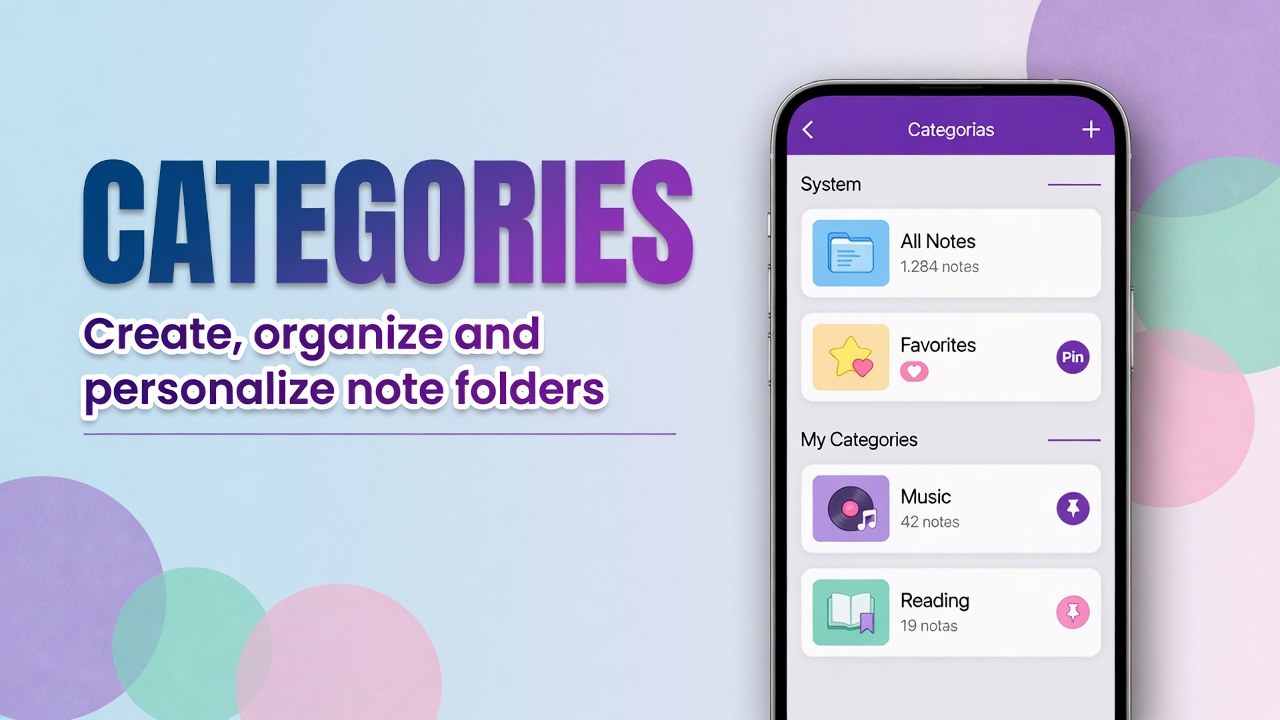
Trash also appears as a system category on the Categories screen — see How to use the Categories page in DicaNote.
How to open the trash
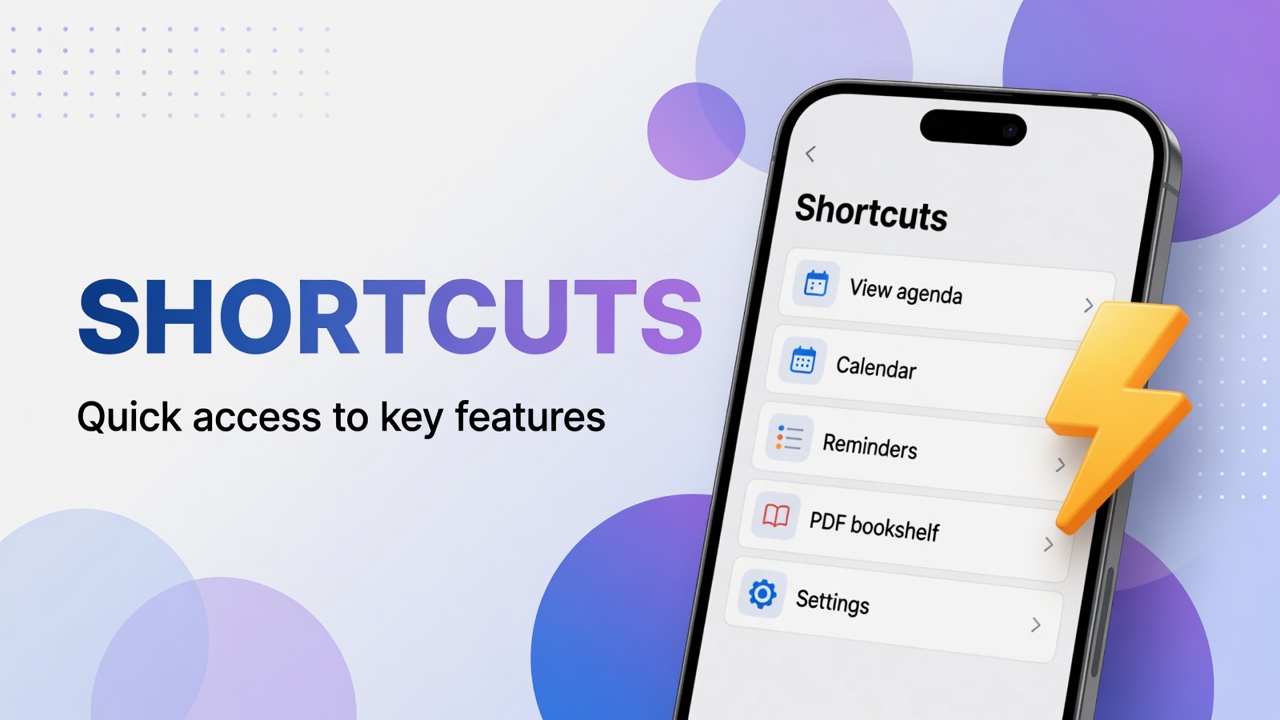
- Open Categories (via Shortcuts, the search panel or the folder shortcut).
- Under SYSTEM CATEGORIES, tap Trash.
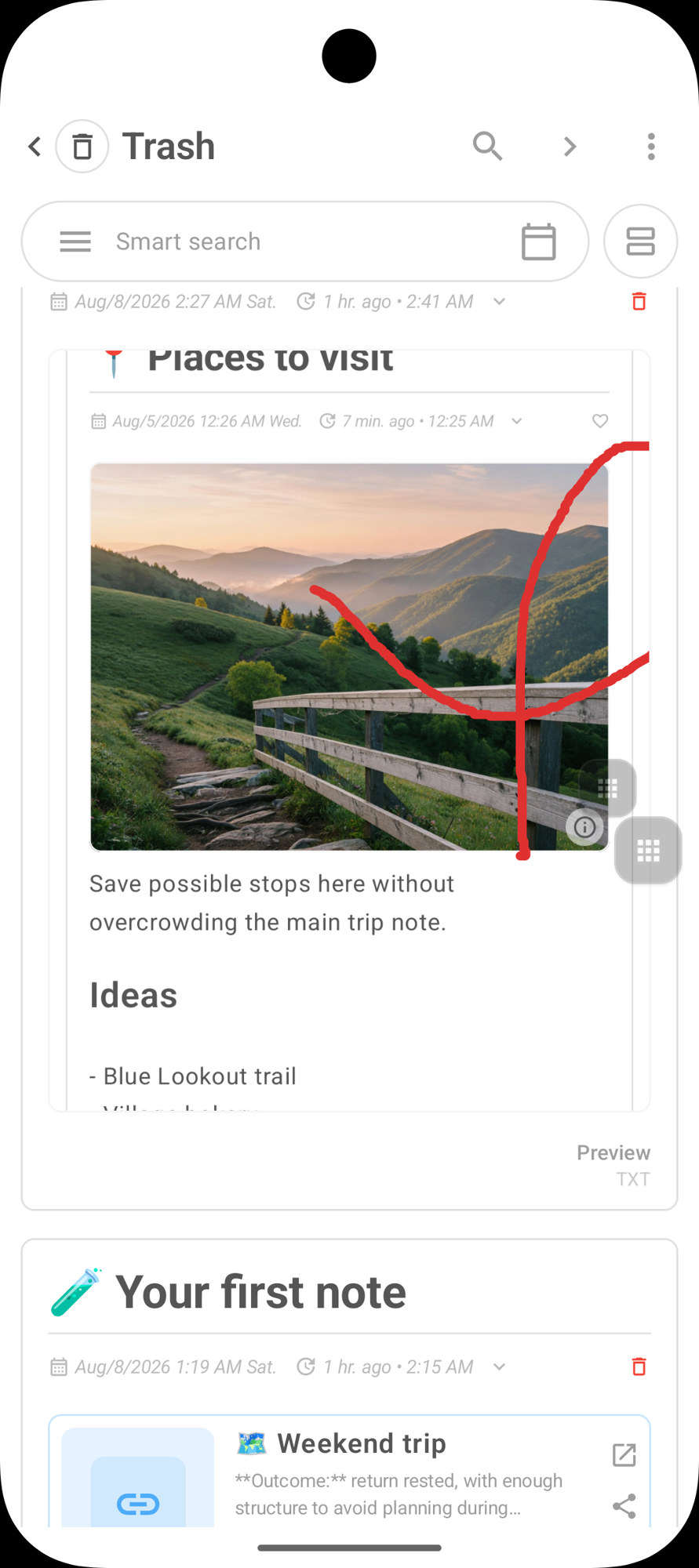
The screen title becomes Trash, with the trash icon. Search and list layout stay available, as in other folders.
How to send a note to the trash
From the list (selection)
- On home or any list, enter selection mode (long-press a note or use multi-select).
- Mark one or more notes.
- Tap the trash icon on the action bar.
- Confirm in the Delete dialog.
From the note card
On some screens the card shows a red trash icon. Tap it and confirm.
From inside the note
In the editor, the ⋮ menu (or delete action) can also offer sending to trash — the dialog text makes the destination clear.
The confirmation dialog
Before going to Trash, the app asks if you are sure.
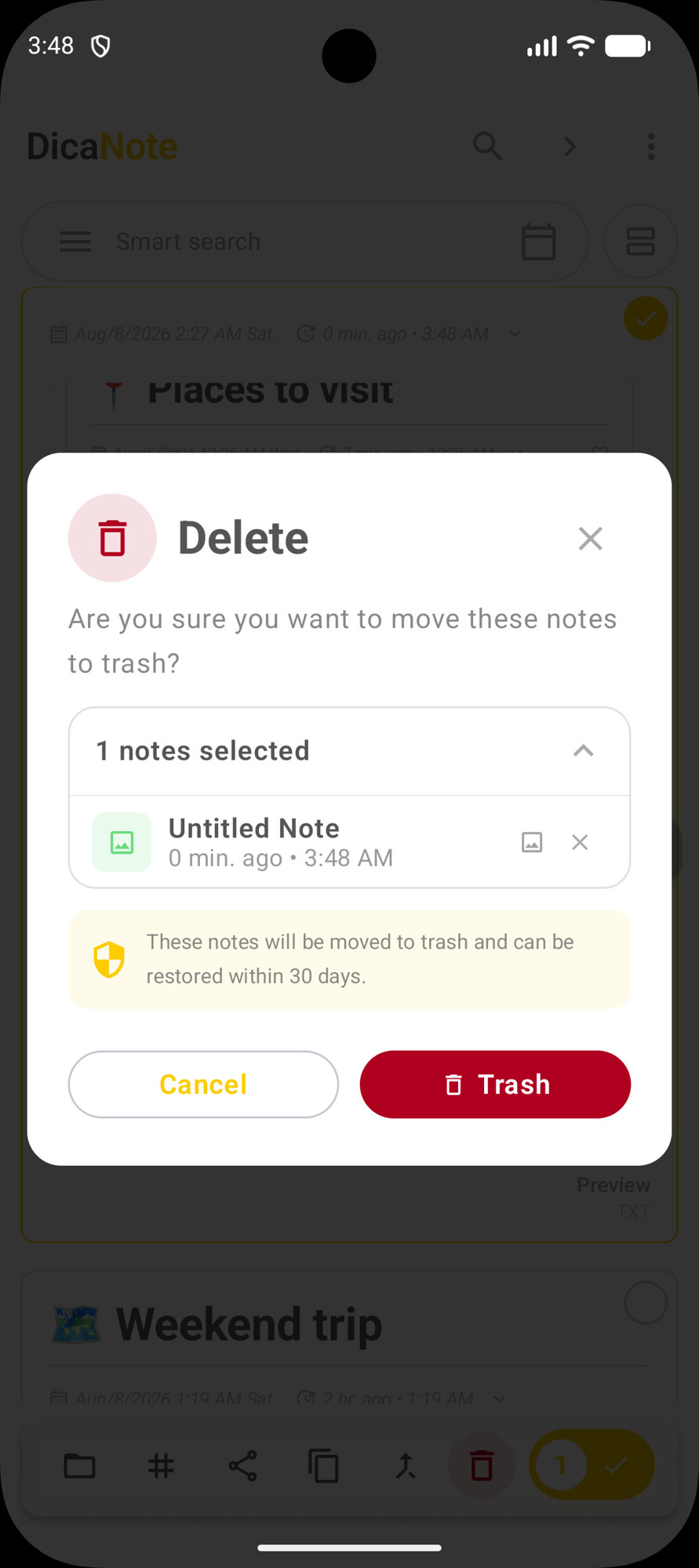
The panel shows:
- how many notes are selected (e.g. 1 notes selected);
- the note name (e.g. Untitled Note);
- the highlighted notice: These notes will be moved to trash and can be restored within 30 days.
Buttons:
- Cancel — does nothing
- Trash (red) — confirms and sends to trash
So the Trash button here is not “vanish forever”. It is “send to the Trash folder”.
What you can do in the trash
Inside Trash you see notes deleted “softly”. In general:
- Restore — the note returns to the library (and to its category, if the app keeps the link).
- Delete permanently — leaves the trash and the 30-day window no longer applies for that item (use only when sure).
The red trash icon on the Trash list is usually the permanent-delete path — the app should ask again. Read the on-screen text before confirming.
30-day window
The dialog notice says 30 days to restore. After that period the app may empty the trash automatically. Do not count on an old note sitting in Trash forever: if it matters, restore or export first.
Practical tips
- Test with a disposable note before clearing the whole library.
- Prefer bulk Trash only after checking the selected list in the dialog.
- Notes in trash leave the normal All Notes count and start counting under Trash on the categories page.
- App backup (export / backup) is another safety layer — trash does not replace backup.
FAQ
I deleted by mistake. Can I get it back?
Open Trash and restore the note, as long as it is still within the window (the app says 30 days in the send dialog).
Are Trash and Delete the same?
In the confirmation dialog, Trash moves to the trash. Permanent delete is an extra step, already inside Trash (or an equivalent action), with a new confirmation.
Does a favorite note also go to the trash?
Yes. Favoriting does not block sending to Trash. After restore, check whether the favorite and category came back as you expect.
Where is the trash if I cannot find it in the menu?
In Categories → SYSTEM CATEGORIES → Trash. You can also reach it via folder shortcuts if your layout shows that group.
Before clearing the library, consider merging duplicates and making a backup.