Templates save time when you repeat the same structure: meeting, project plan, shopping list, book notes. Instead of building tables and checklists from scratch, you open the gallery, pick a card and fill in what matters.
Two common paths to get there:
- Home menu (three dots) → Manage Templates
- + button → Note template (creates from a template without the full management screen)
The second shortcut is in How to create a note, template, to-do list or drawing.
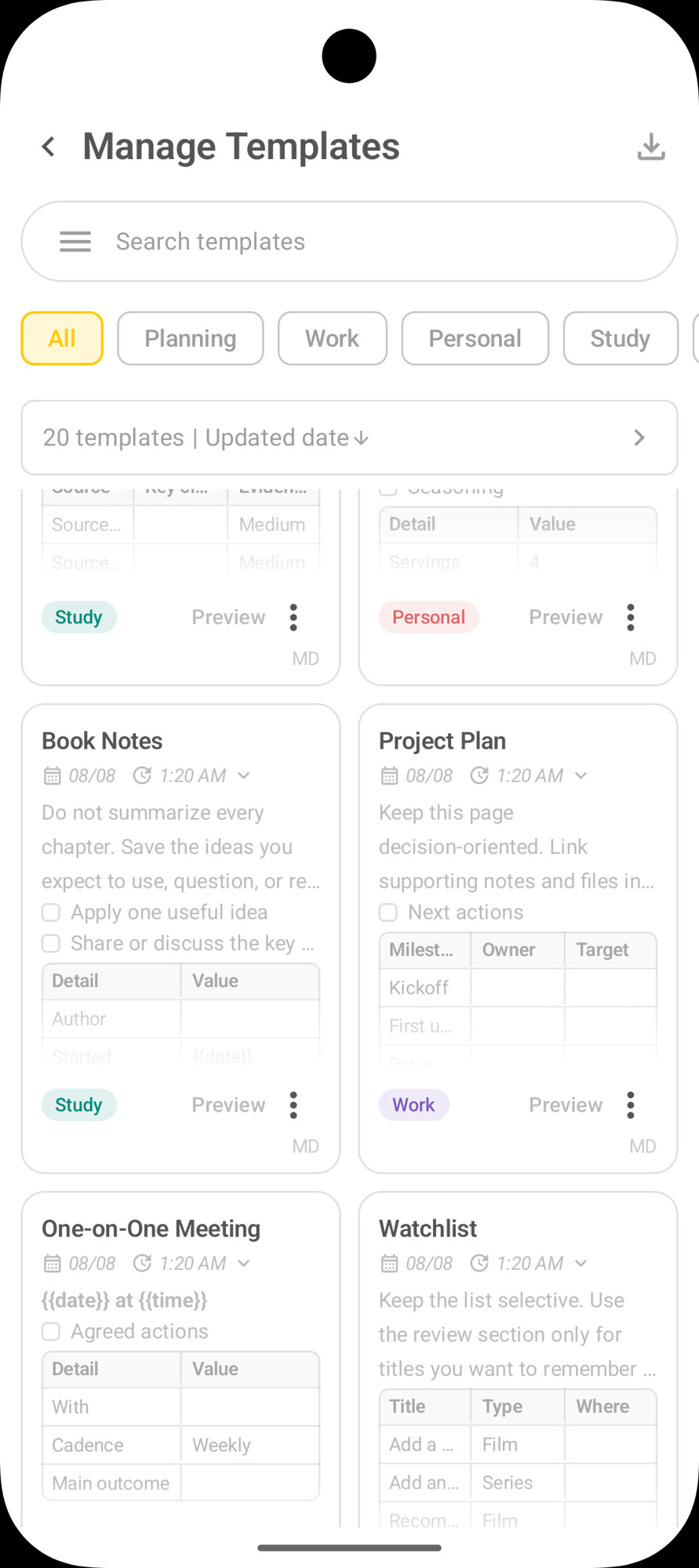
The Manage Templates screen
At the top:
- Back (arrow) — leaves the gallery
- Download (download icon) — import / obtain templates (when available)
- Search templates — search by name
Category tabs
| Tab | Typical focus |
|---|---|
| All | All templates |
| Planning | Weekly review, travel, routine |
| Work | Project, meeting, plan |
| Personal | Recipe, watchlist, home |
| Study | Study session, book notes, research |
Tap a tab to filter. All in yellow (or highlight) shows the full list.
Count and sorting
Below the tabs you see something like 20 templates | Updated date ↓.
- Total number of templates in the library
- Sort criterion (e.g. update date, descending)
- The arrow opens sort options
Use this when the gallery grows and the right template is not at the top.
What each card shows
Each template is a card with:
- Title (Book Notes, Project Plan, One-on-One Meeting, Watchlist…)
- Date / time reference for the template
- Preview of the content: text, checklists, tables, fields like
{{date}} - Area label (Study, Work, Personal…)
- Preview — open the structure without creating the note yet
- MD — Markdown indicator when the template uses that format
- ⋮ (three dots) — card actions (edit, duplicate, delete, etc., as the app offers)
The preview helps you decide before “dirtying” the library with a note that does not fit.
Create a note from a template
- Open Manage Templates.
- Filter by tab or search the name.
- Tap the card (or Preview and then confirm use).
- DicaNote creates a new note with a copy of the structure.
- Replace placeholders (
{{date}},{{time}},{{month}}…) with real values. - Adjust lists and tables.
- Save.
The original template does not change. The new note is independent: you can delete sections, change the title and organize with category and tags.
Useful gallery examples
- Book Notes — ideas per chapter, without summarizing everything; checklist to apply or discuss
- Project Plan — decisions, milestones, owner and target date in a table
- One-on-One Meeting — date, with whom, cadence, agreed actions
- Watchlist — movies/series with title, type and where to watch
- Travel Planner, Weekly Review, Grocery List, Study Session — already useful for planning and routine
Best practice: treat the template as a reusable draft. Cut what you never fill in. A short, stable structure works better than an endless form.
Import and organize templates
- The download icon at the top of Manage Templates points to import (or download) templates. Review the content before trusting a file blindly.
- After creating the note, add a category and tags (e.g. Work +
project-x). See How to use the Categories page. - Dead notes go to the trash like any other.
FAQ
Does using a template change the original?
No. The app creates a new note based on the template. The card in Manage Templates stays the same for next time.
Can I find a template by name?
Yes. Use Search templates at the top of the gallery.
What are fields like {{date}} and {{time}}?
They are placeholders to fill in the moment: date, time, month, year, week. Replace with the real value or delete if you do not need them.
What is the difference between Preview and creating the note?
Preview lets you see the structure. Creating from the template generates the note in the library, ready to edit and save.
Can I import templates?
Yes. The templates screen has an import option (download icon). Open and review the content before relying on it day to day.