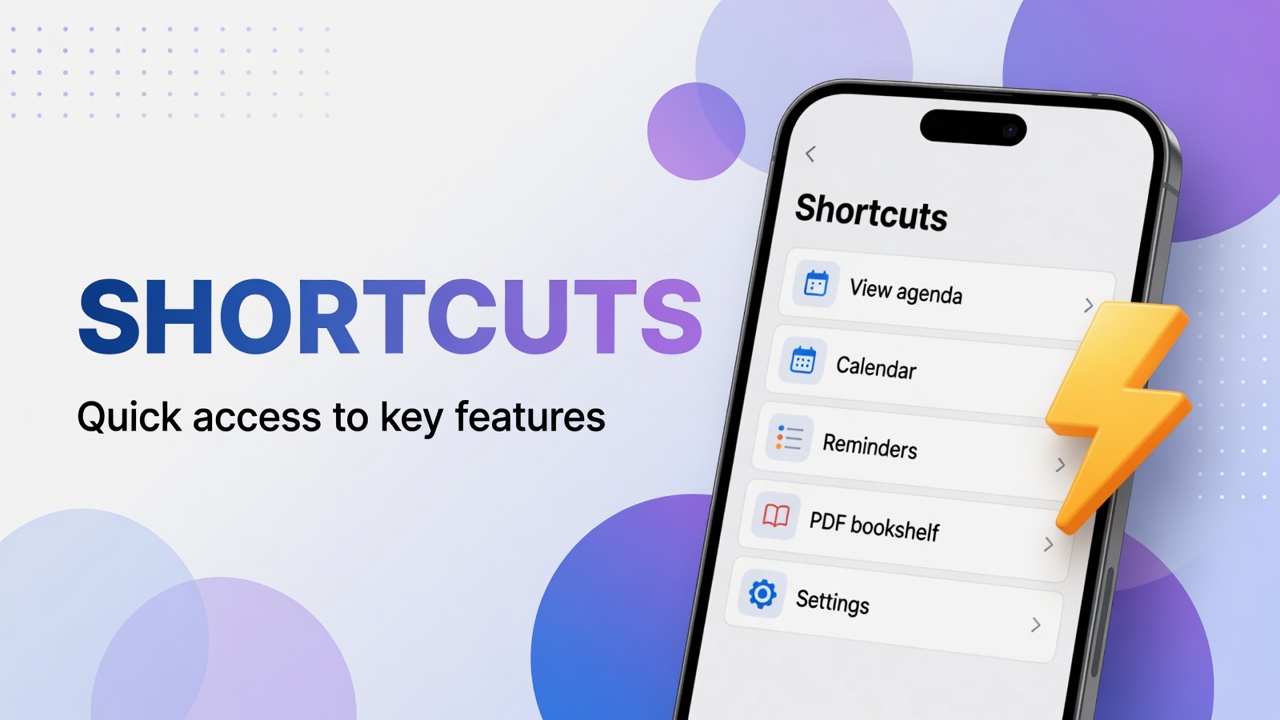
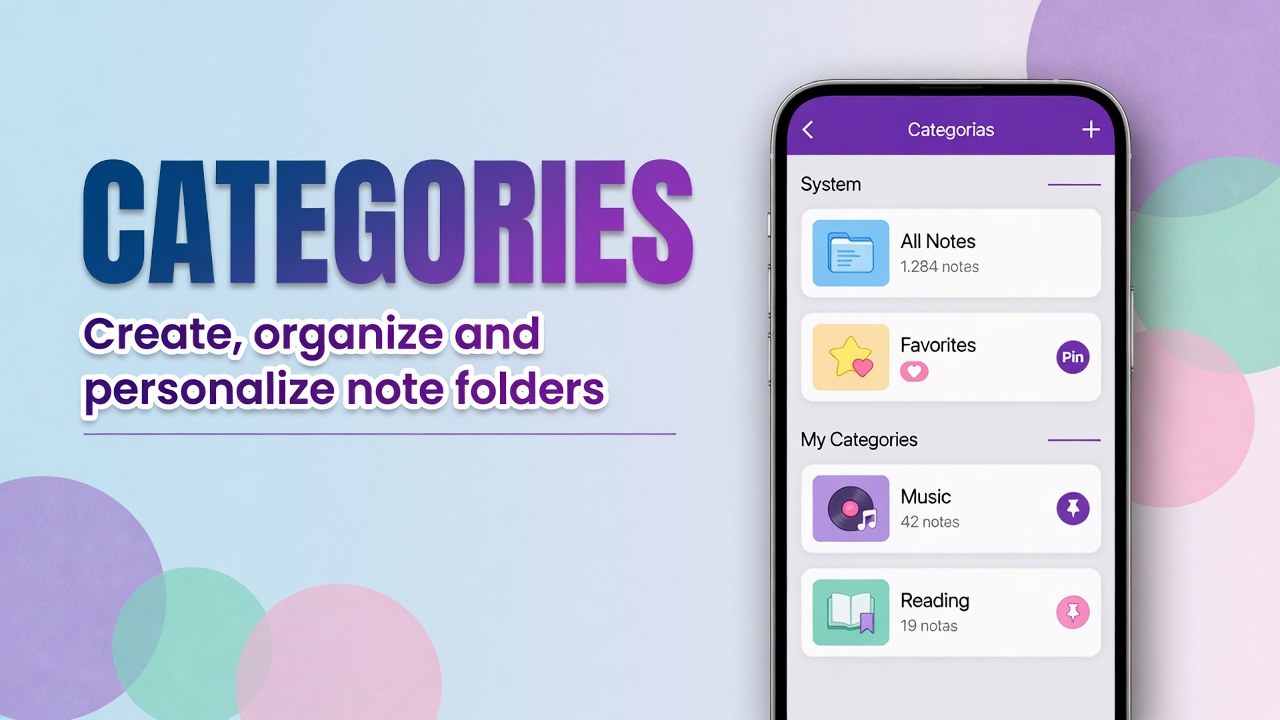
Category is the big folder. Tag is the sticker that repeats across different topics: urgent, receipt, idea, client. In the app the shortcut is #.
Put a tag on a note
- Open the note.
- Tap # on the bottom bar.
- Type the name (
urgent,ebook,2026) or pick a tag already used. - Confirm and save the note.
You can have several tags on the same note.
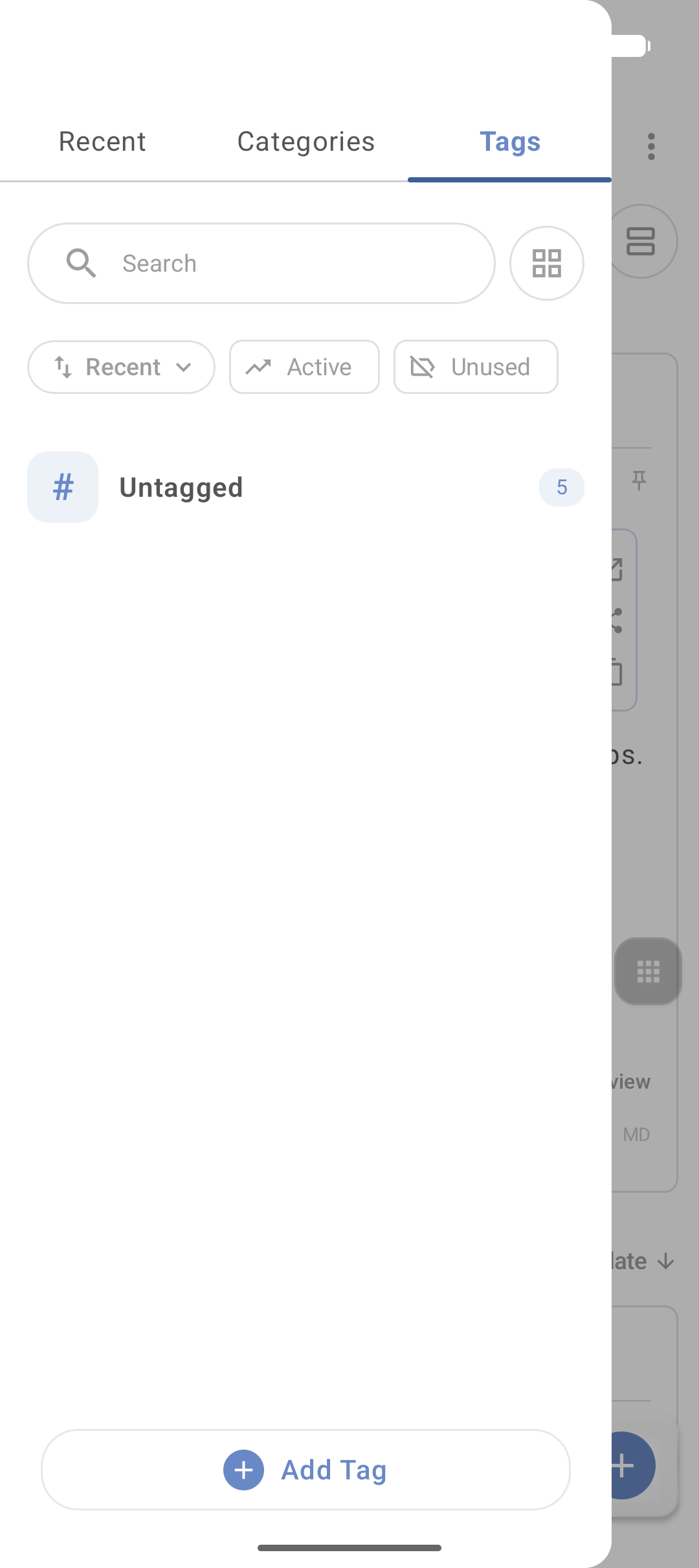
Where to find all tags
- Panel next to Smart search → Tags tab
- Shortcuts → Tags
- On some builds, a dedicated tags screen in category navigation
Tap a tag to see only marked notes.
Rules that avoid chaos
- One spelling only:
#receipt, not#Receiptand#invoicefor the same thing. - Few “eternal” tags: urgent, idea, receipt, waiting.
- Project detail can be a category or a link, not twenty new tags a week.
- Tag in bulk when cleaning the library.
Category + tag (example)
Note in category Travel, tags #hotel and #paid.
Note in category Finance, tag #receipt.
Searching #receipt picks up travel and home receipts without mixing the folders.
FAQ
Does a tag replace a category?
No. Use both: folder for the topic, tag for the attribute.
Can I rename a tag on all notes?
Depends on the version. If there is no global rename, standardize when creating and use bulk selection on old notes.
Does a tag show up in search?
Usually yes, if you type the tag name in Smart search. Guide: search.
Overview: organize with categories and tags.