Copy, switch apps and paste gets tiring. On Android, Share sends text into DicaNote with the field already filled.
From another app into DicaNote
- In Chrome, Gmail, WhatsApp, Maps… select text or use Share on the page.
- Tap Share.
- Choose DicaNote.
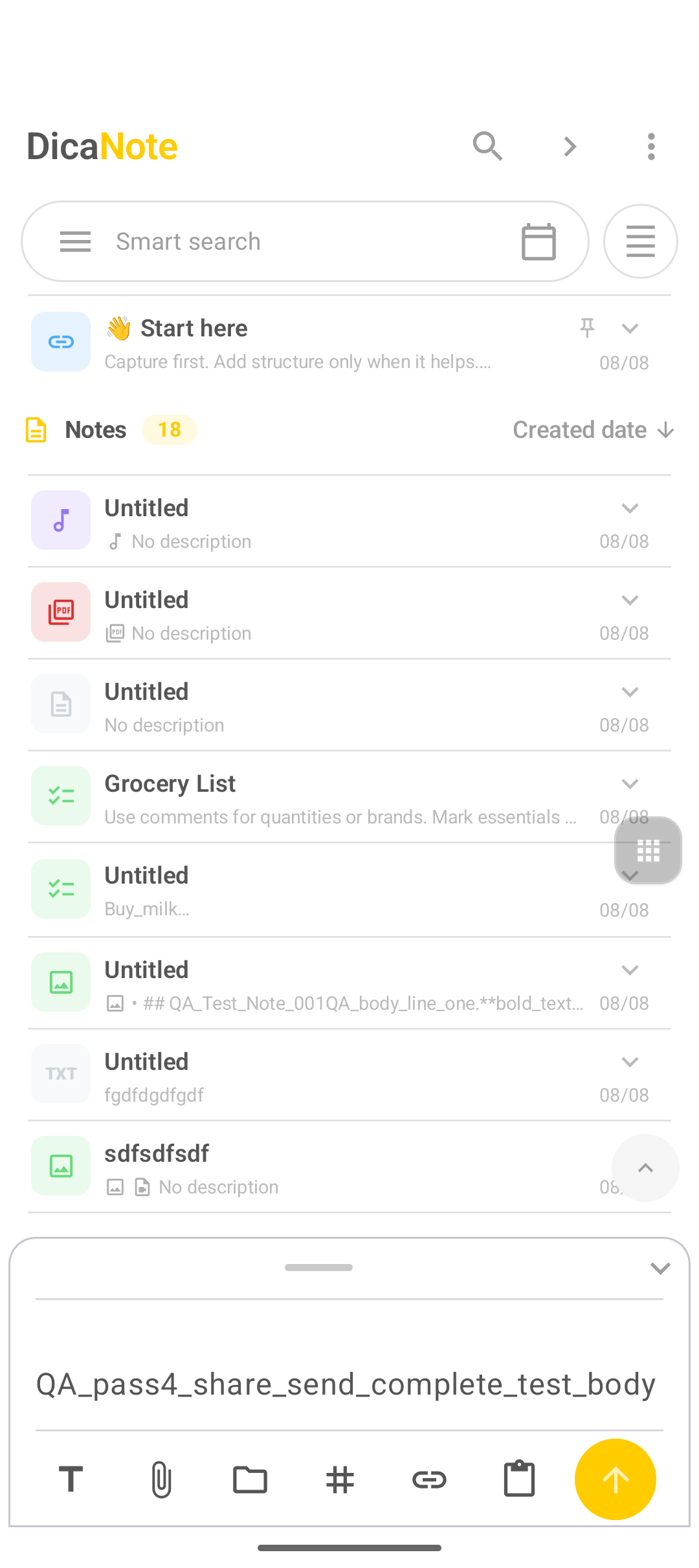
- The Shared Content panel opens.
In the composer you can:
- edit the received text;
- fill the title (or “first line as title”, if available);
- Create New Note / send a new note;
- Choose a note to paste into an existing one;
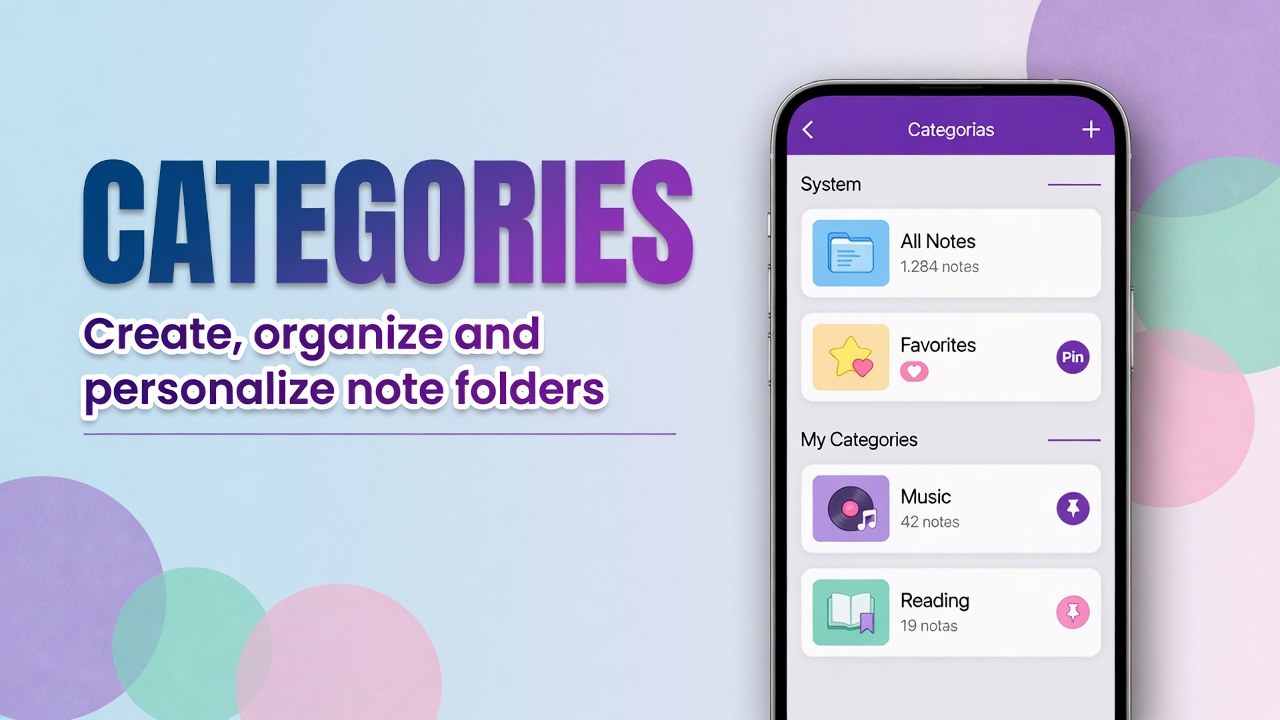
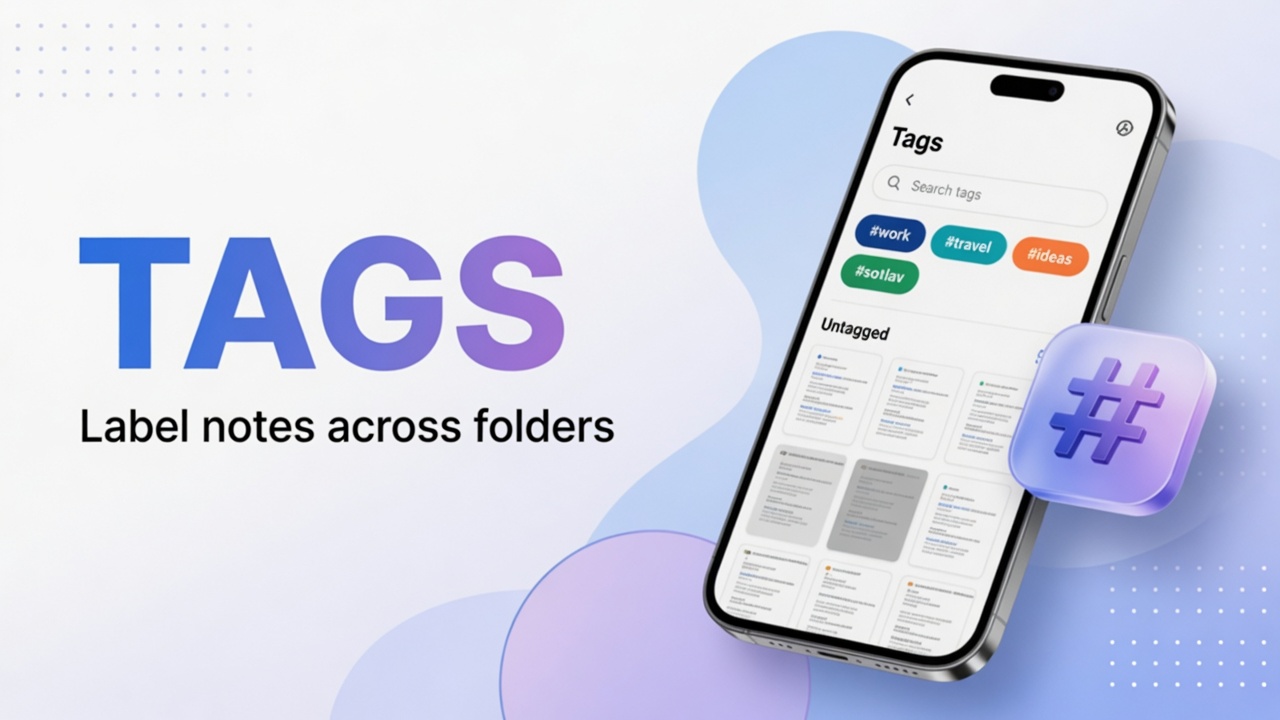
- categories and tags;
- paperclip to attach something right away.
Use cases
- Article excerpt with a
readingtag. - Address or time on the trip note.
- Email draft that is not an email yet.
- Long link that disappears in chat history.
Tip: if the source app offers “link only” and “text+link”, prefer the one that brings the snippet you need offline.
After creating
The note becomes a normal note: Markdown, attachments, pin, backup. The composer is only the entry door.
If DicaNote does not appear in Share: check it is installed and that the Android app picker is not filtering only “recently used”.
Share outward
From a note, Share in selection or the menu exports text to another app — the reverse of this tutorial.
FAQ
Does it work with images?
This flow is text. Photo and file: paperclip on the note or Android media in the attachments panel.
Does the original disappear from chat?
No. Share sends a copy.
Can I edit before saving?
Yes. The composer field is editable.
Do I need a login?
To store on the device, the local flow is enough.