Almost everything that is not “write a note” lives in Settings, in the three-dot menu. Below, what each block solves (English labels in the UI).
How to open
- Home screen → ⋮
- Settings
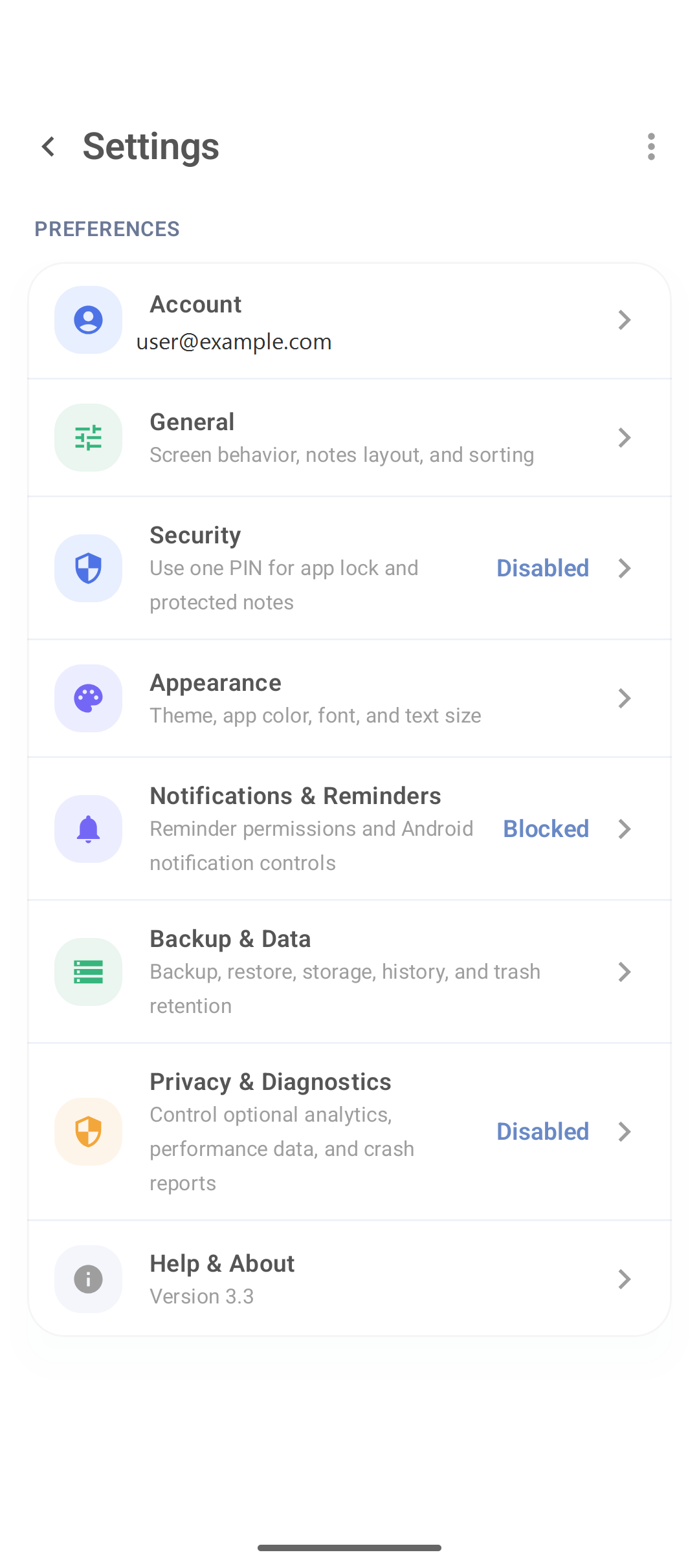
Account
Shows the session email (if there is a login). From here you:
- Sign out (read the text: usually the local profile can remain);
- remove the profile on this device;
- reach Delete account (permanent).
Do not confuse Sign out with deleting the account. PIN details: private notes.
General
Screen behavior, default layout, sorting. If the list “starts” in the wrong mode, combine this section with the home layout button (favorite and layout).
Security
App PIN and protected notes. Disabled = extra lock is off.
Appearance
Theme, color, font and text size. Set once.
Notifications & Reminders
Must be allowed on Android and in the app for reminders to arrive. If Blocked, open system permissions.
Backup & Data
Create and restore a local copy. Step by step: import, export and backup.
Privacy & Diagnostics
Optional telemetry. Leave it off if you do not want diagnostic data sent.
Help & About
App version (e.g. 3.3) — note it when reporting a bug.
Useful flow after install
- Appearance if text is small.
- Notifications if you will use tasks.
- Security only if there is sensitive data.
- Backup when the library is no longer “three test notes”.
FAQ
Does Sign out delete my notes?
In the default message the app talks about keeping the profile on the device. Confirm the dialog. Delete account is the destructive path.
Where do I change the language?
If an option exists, under General/Appearance; otherwise the app follows the system language or the build.
Is Google cloud backup the same as Backup & Data?
Do not mix them. Treat the DicaNote export/ZIP as a copy you control.
Cloud sync is not enabled — is that an error?
It is a notice that notes live on the device. Use local backup if you want a copy off the phone.