On first launch DicaNote may show an onboarding tour. You can follow it or skip and go straight to the note list.
Minutes 1 to 5
- Open the app and skip the tour if you want.
- Look at home: search at the top, Pinned, Notes list, bottom bar.
- Tap + and create a first note with a real title (Grocery list, not Untitled).
- Write two lines and save.
- Go back to the list and confirm the note appears.
Permissions (only when you need them)
Android should ask for camera, microphone or photos only when you attach files, record audio or scan a document. Denying everything “just in case” and then expecting those features to work is a recipe for frustration — allow access when you use the feature.
Shortcuts worth learning on day one
| Control | What it’s for |
|---|---|
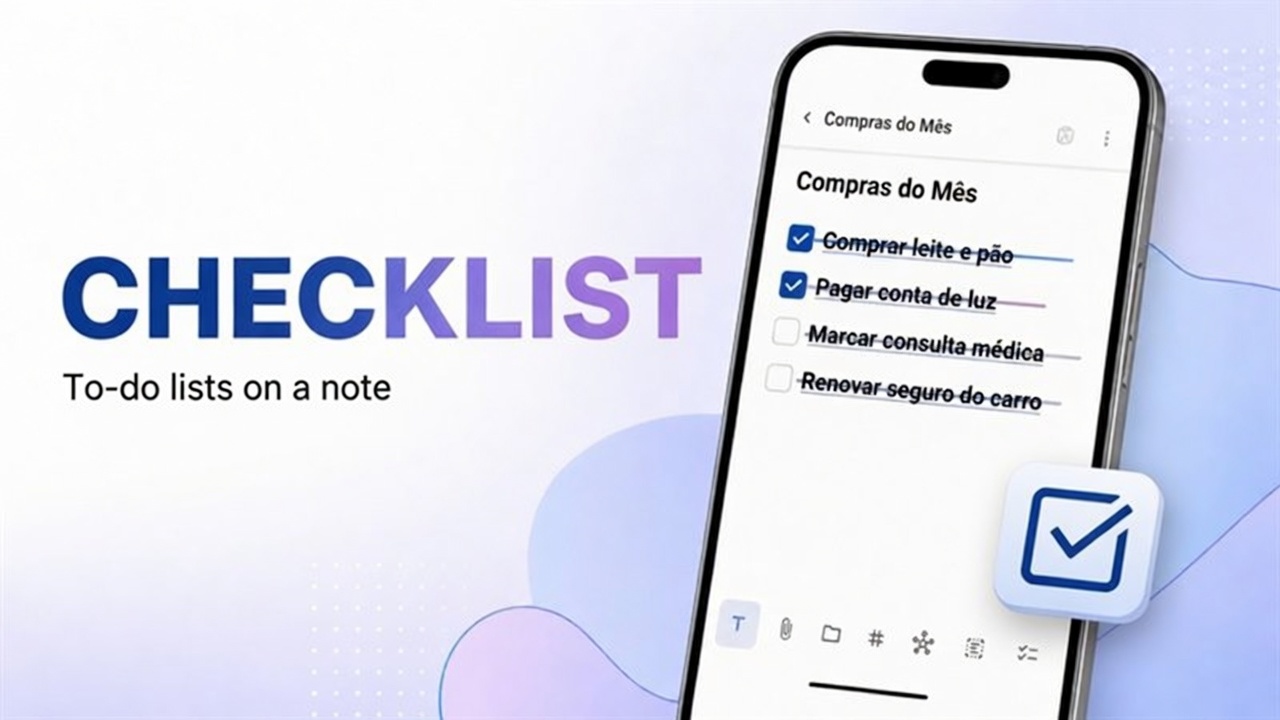
| + | Create a note (or template / checklist / drawing) |
| Paperclip | Attachments |
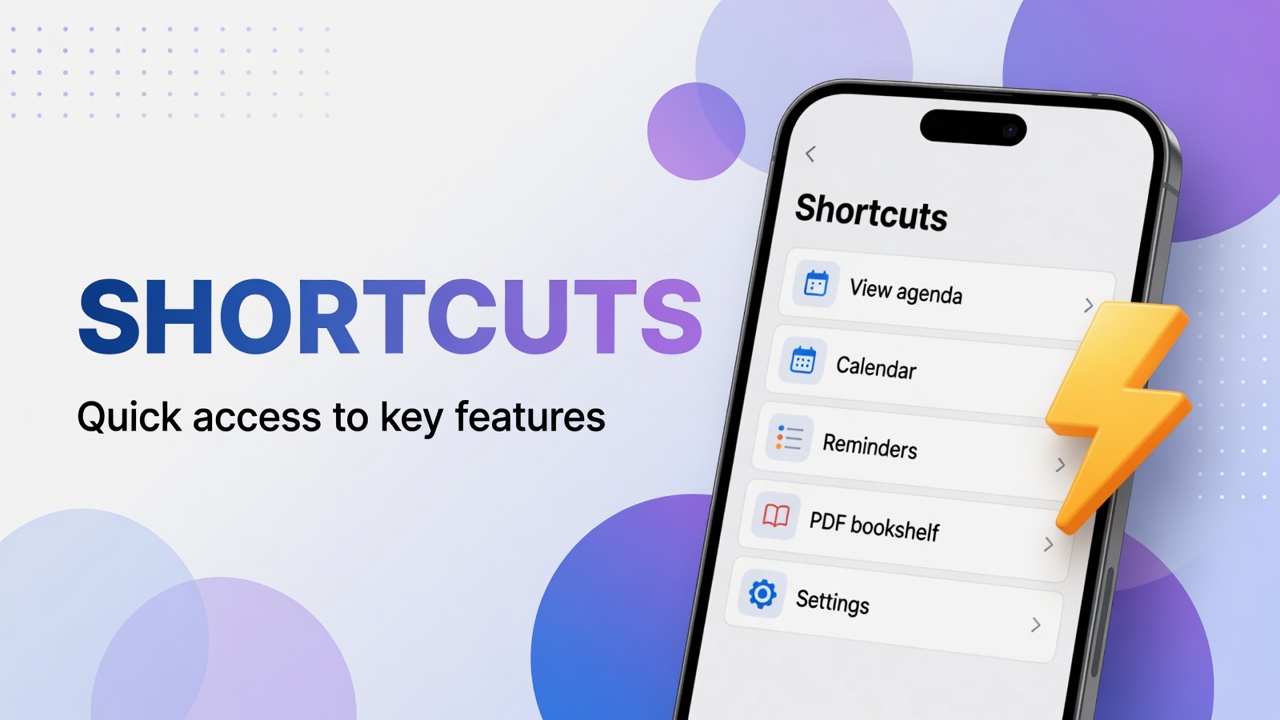
| Grid (Shortcuts) | Calendar, tasks, categories shortcuts |
| ⋮ | Full menu and Settings |
Account, backup and PIN (don’t wait until travel day)
- Login is optional for local use.
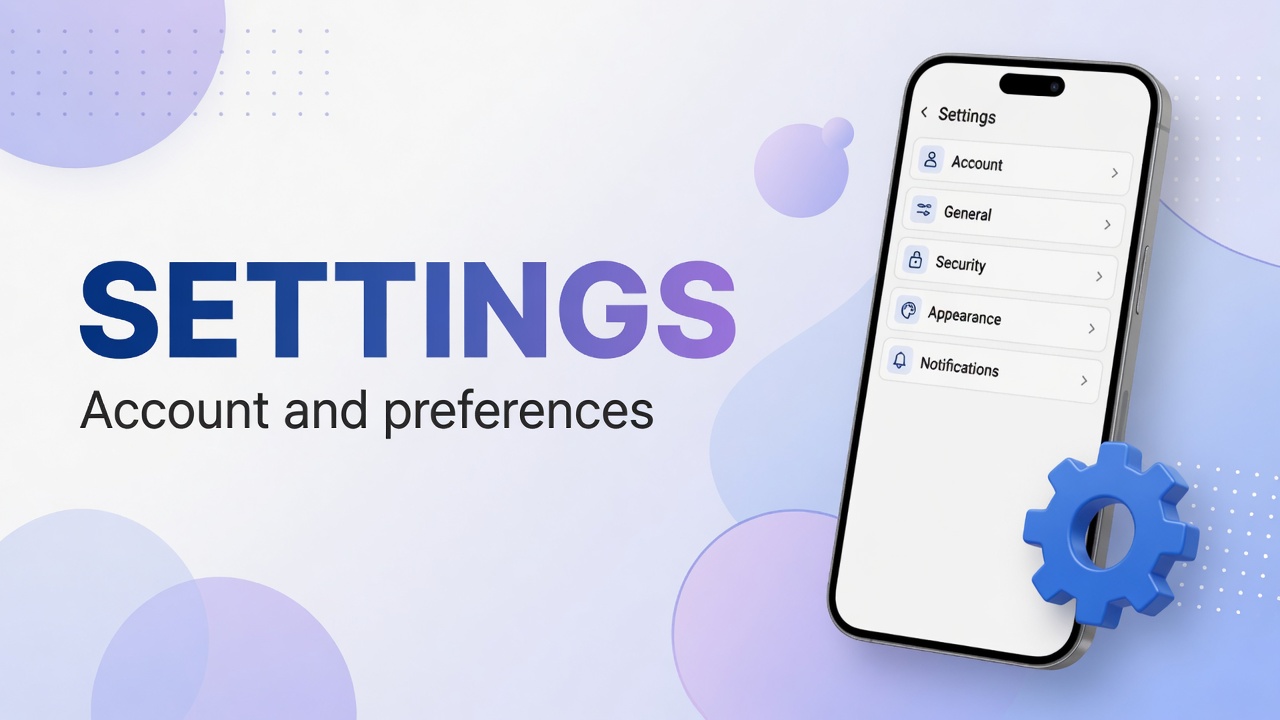
- When your library grows: Settings → Backup & Data → Back up now, then try Restore from backup — full guide.
- Sensitive notes: Settings → Security / Privacy PIN — privacy PIN guide.
- The app UI is mostly English; tutorials keep on-screen names in bold.
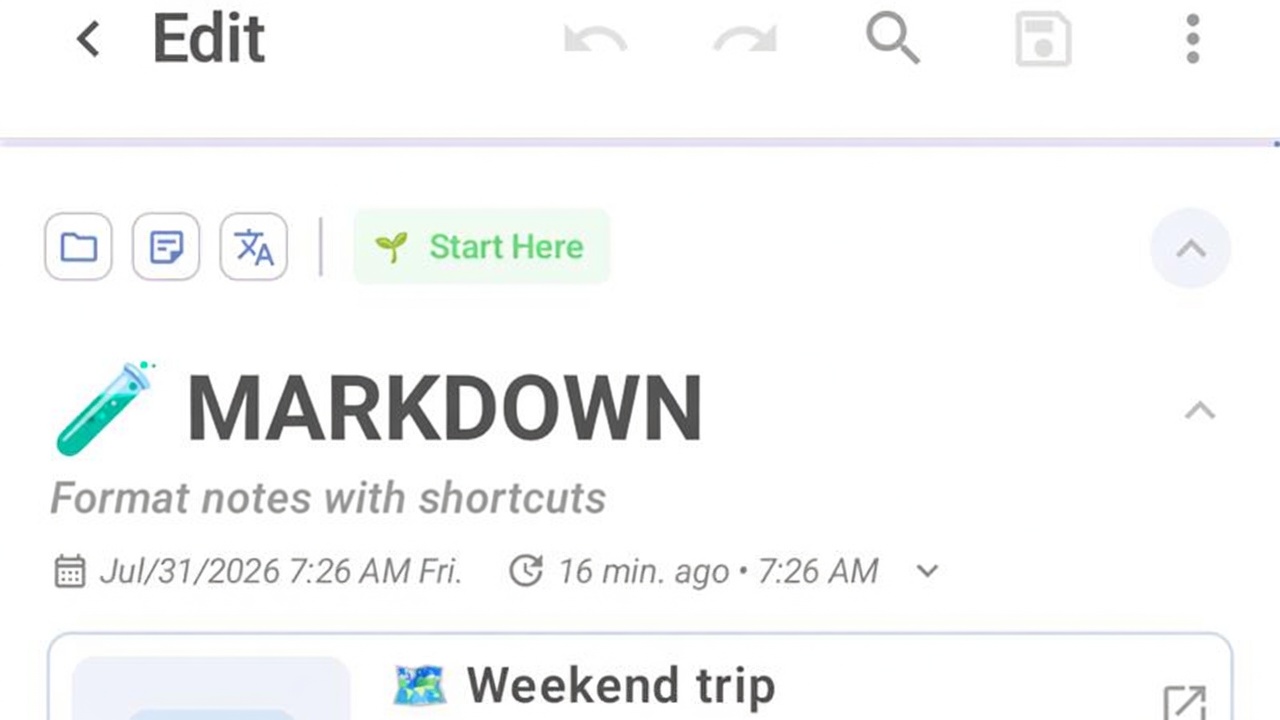
“Start here” demo notes
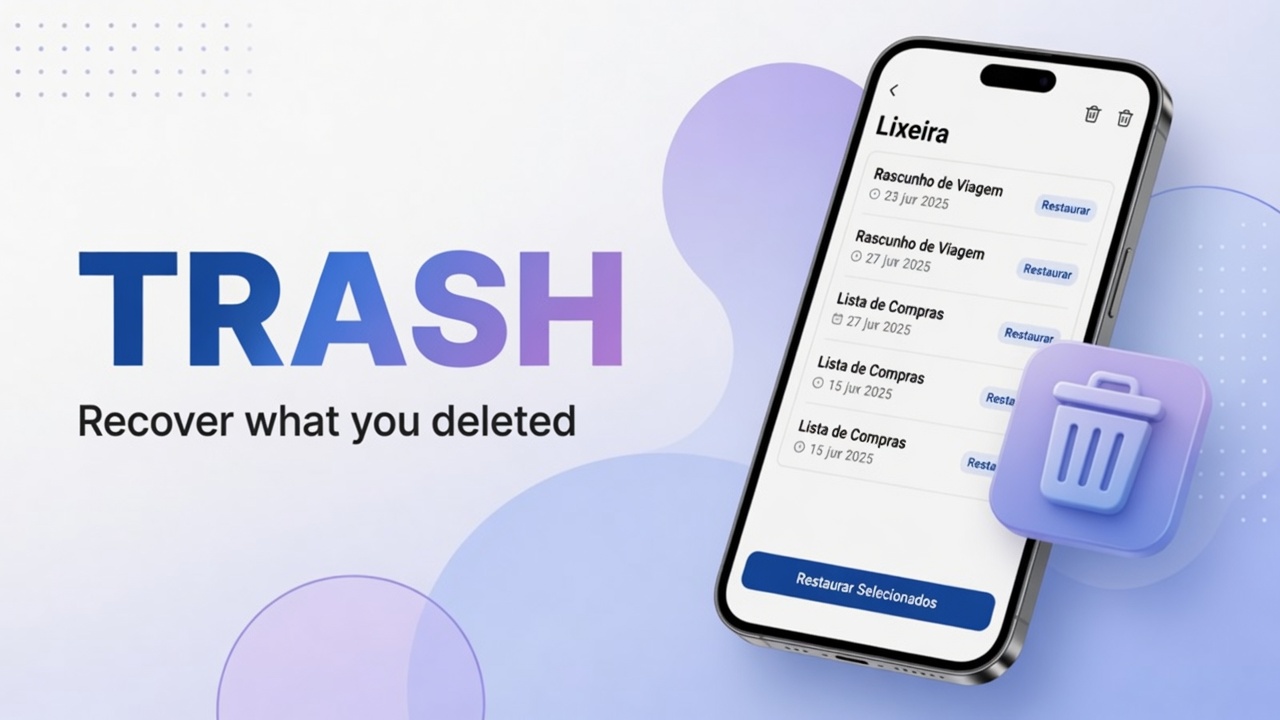
The app may ship with demo notes. They are real notes: edit, archive or trash them when you no longer need them.
Next guides
- English hub
- First note
- Backup & restore
- Portuguese hub (full set of guides)
FAQ
Do I need a Google account?
Not to create notes on the device. An account is only for optional login/sync if you turn that on in Settings.
Can I delete the demo notes?
Yes. They are normal notes — trash or edit freely.
Is there a Portuguese app UI?
The interface may follow the system language or build. These English guides use English button names as shown in the app.