DicaNote is for capturing quickly and organizing later. Your first note does not need to be perfect: a title, two lines and save already counts.
Create the note
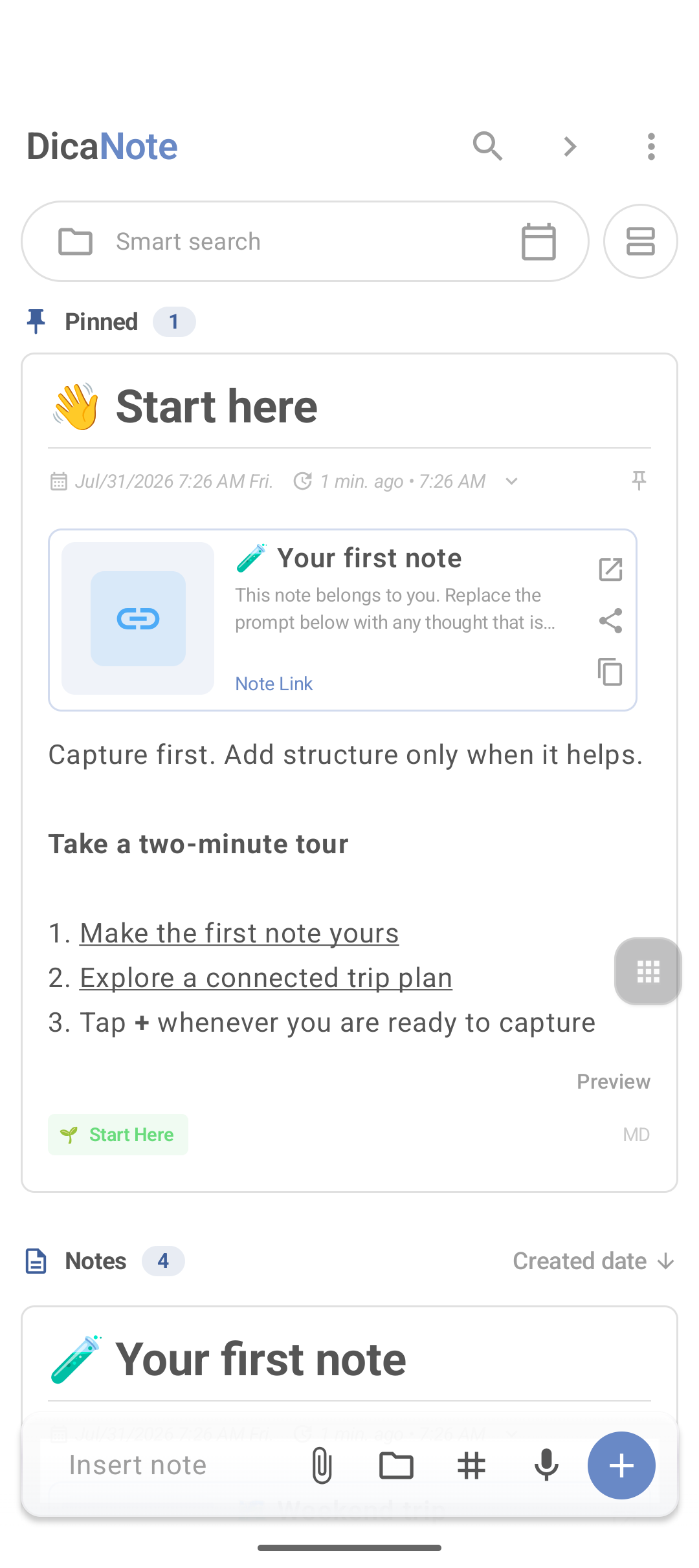
- Open DicaNote.
- Tap + (yellow/blue, bottom-right) or Insert note.
- If a create menu opens, pick blank note, template, list or drawing — blank is fine the first time.
- Type a title you will recognize a week from now.
- Write the body.
- Tap save (disk icon) at the top if it appears — the app also protects drafts, but saving after a big change avoids surprises.
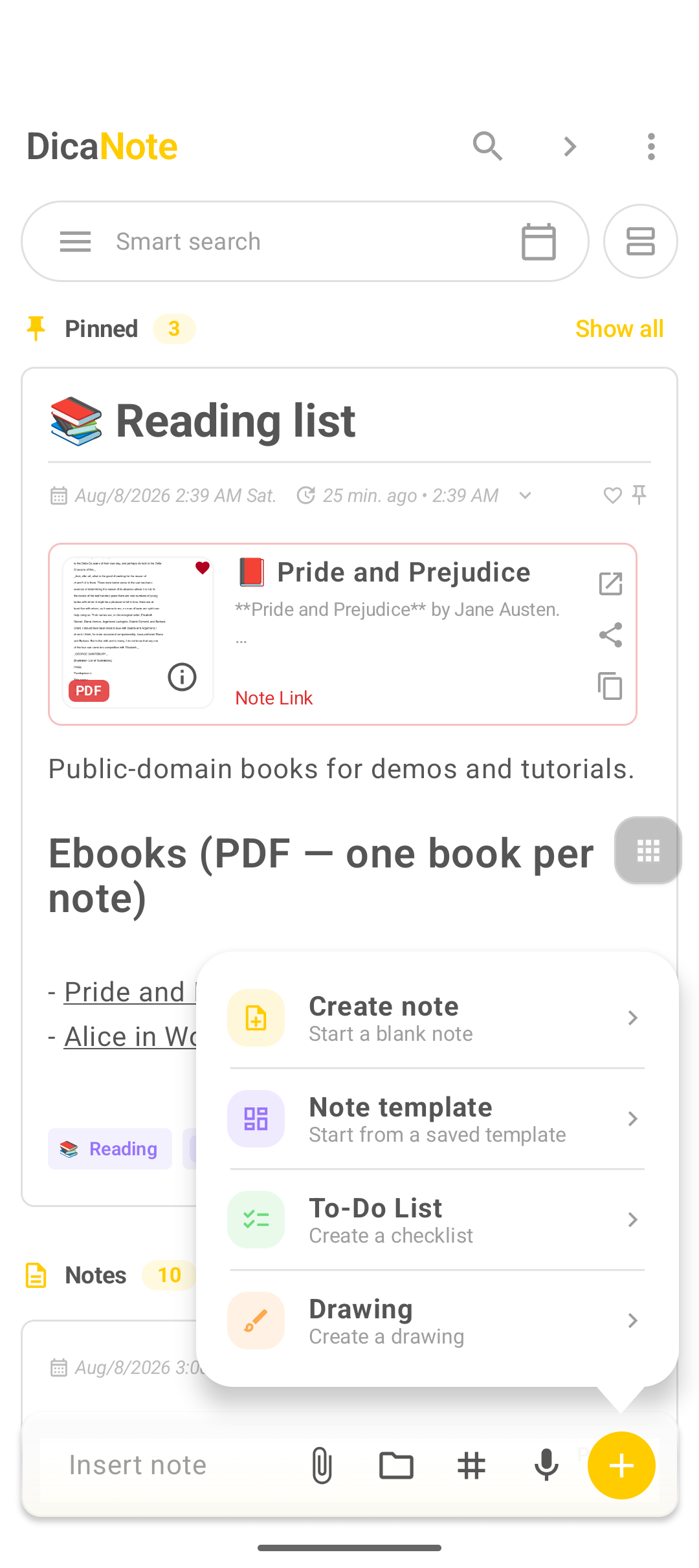
More create options: note, template, list or drawing.
The editor
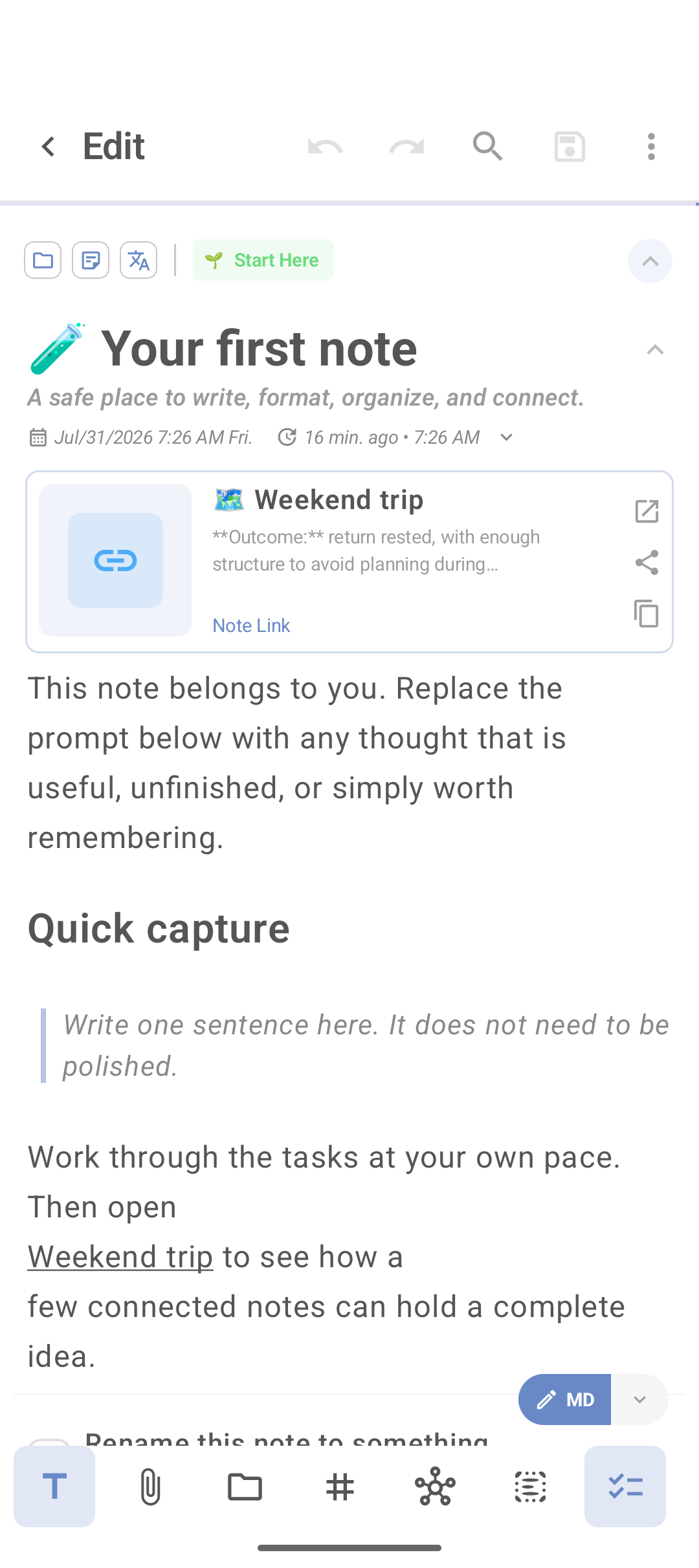
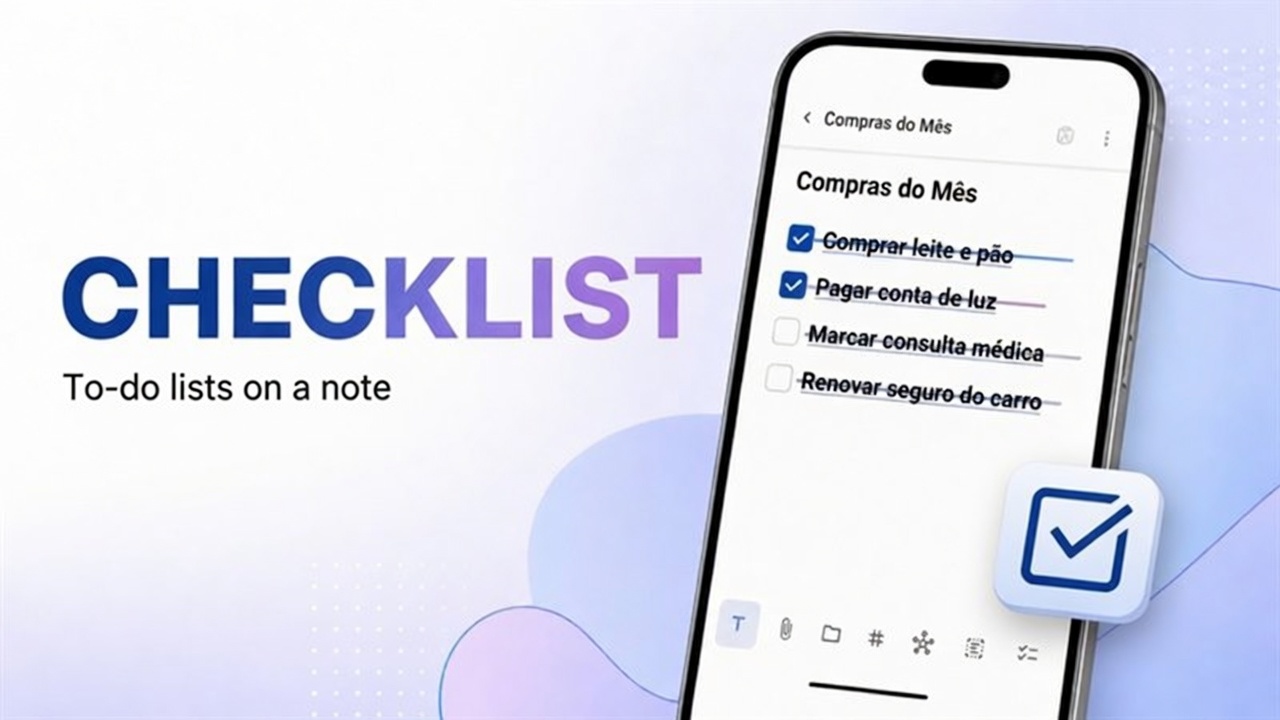
Typical bottom bar:
- T — text and formatting
- Paperclip — attachments
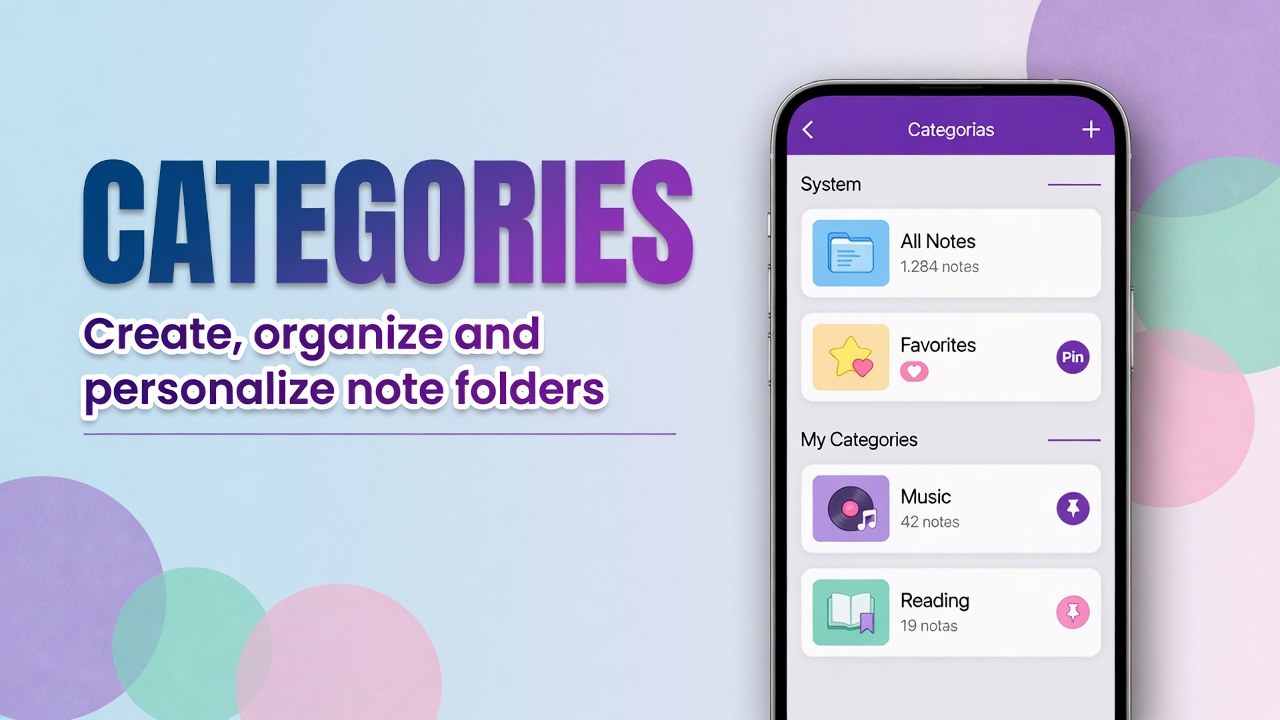
- Folder — categories
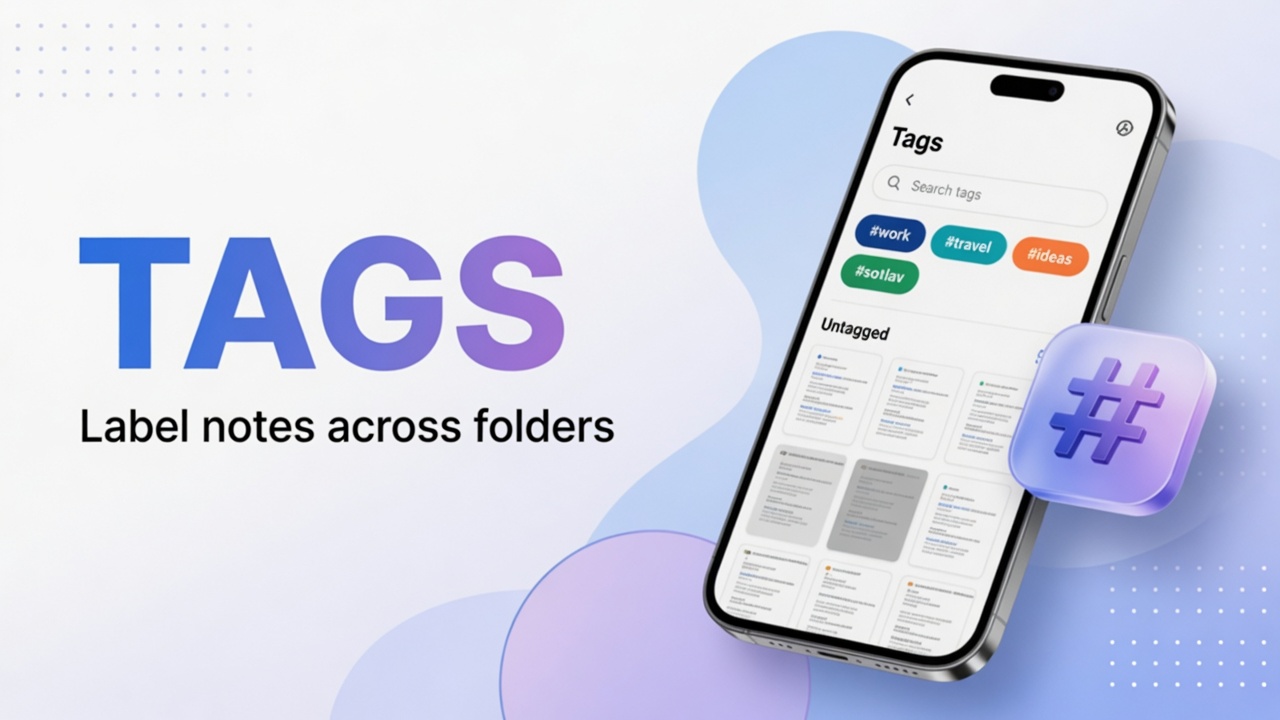
- # — tags
- Links — relations between notes
- List — checklist
Markdown (optional)
In MD mode:
# Title
## Subtitle
- Item
- [ ] Task
**bold**
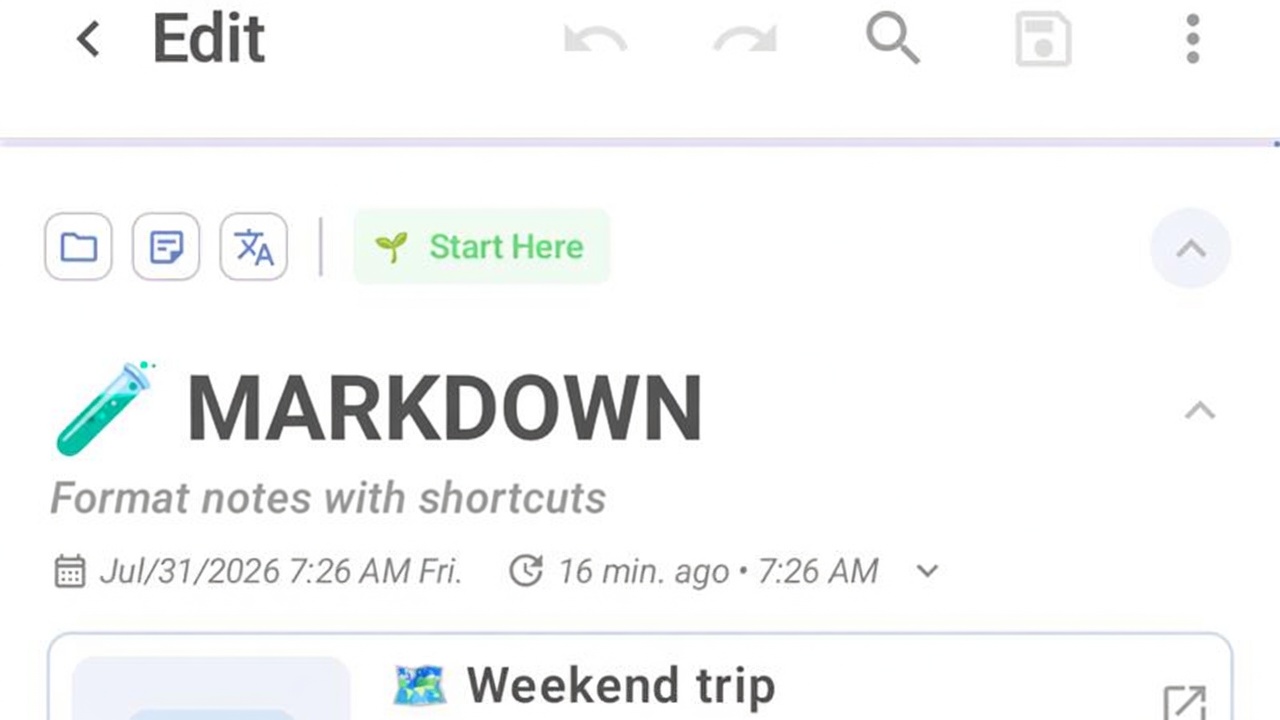
Switch between edit and preview if your version has both modes.
Organize without overdoing it
- A large category (Work, Personal, Travel).
- A tag only if you will reuse it (
#urgent,#receipt). - Pin the note if it is the one for the week.
Tip: capture first. Category and tag come on the second pass, when the note is still useful.
FAQ
Does it save automatically?
There is draft protection, but tap save after important changes.
How do I make a to-do list?
List component on the bar or Markdown - [ ]. Guide: checklist.
How do I connect two notes?
Use the links / related notes shortcut. Guide: internal and web links.
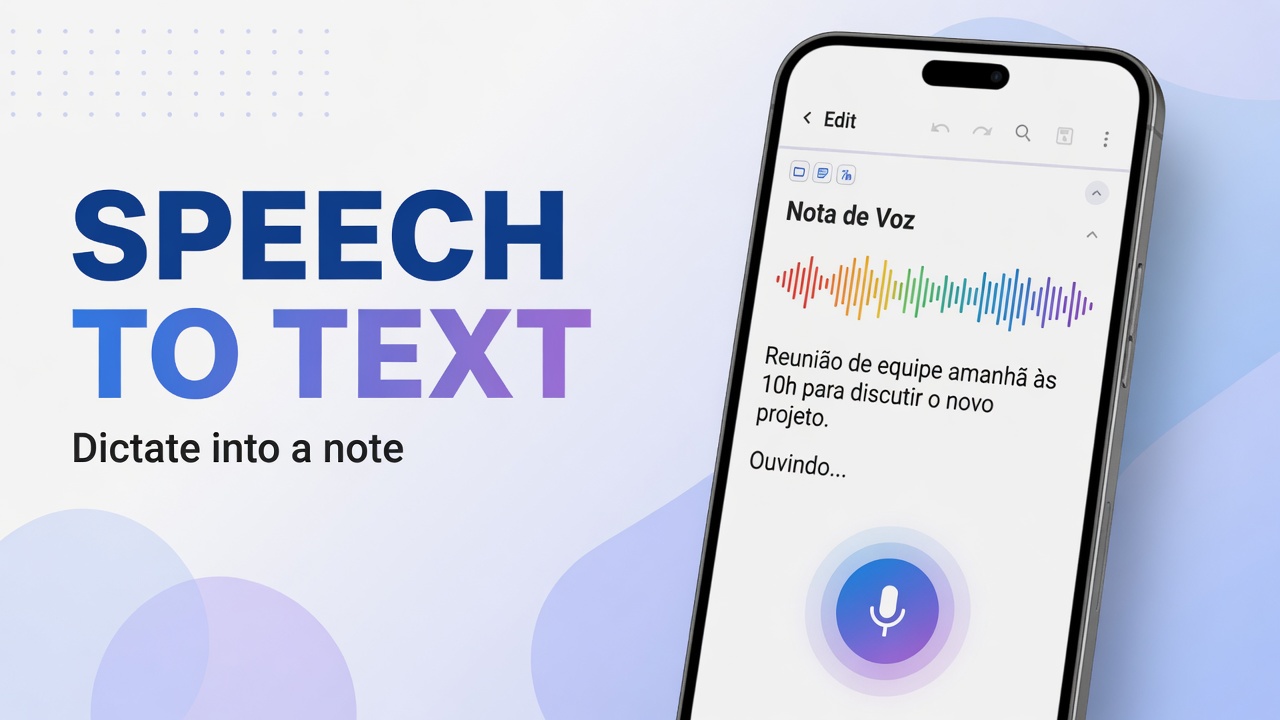
Can I dictate instead of typing?
List microphone: Speech to text. For a sound file: record audio.
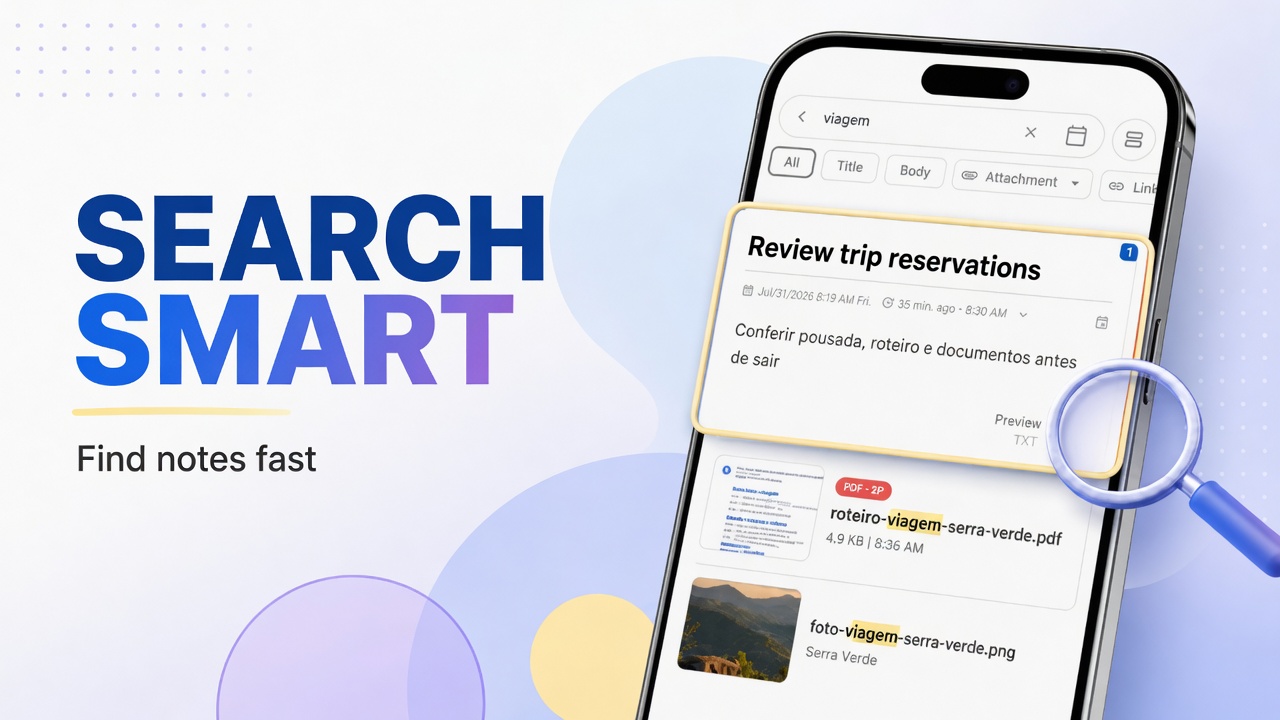
Natural next step: organize with categories and tags and smart search.