The list grows fast. Favoriting, pinning (Pinned) and switching layout avoid endless scrolling to find the same note every day.
Pin (Pinned)
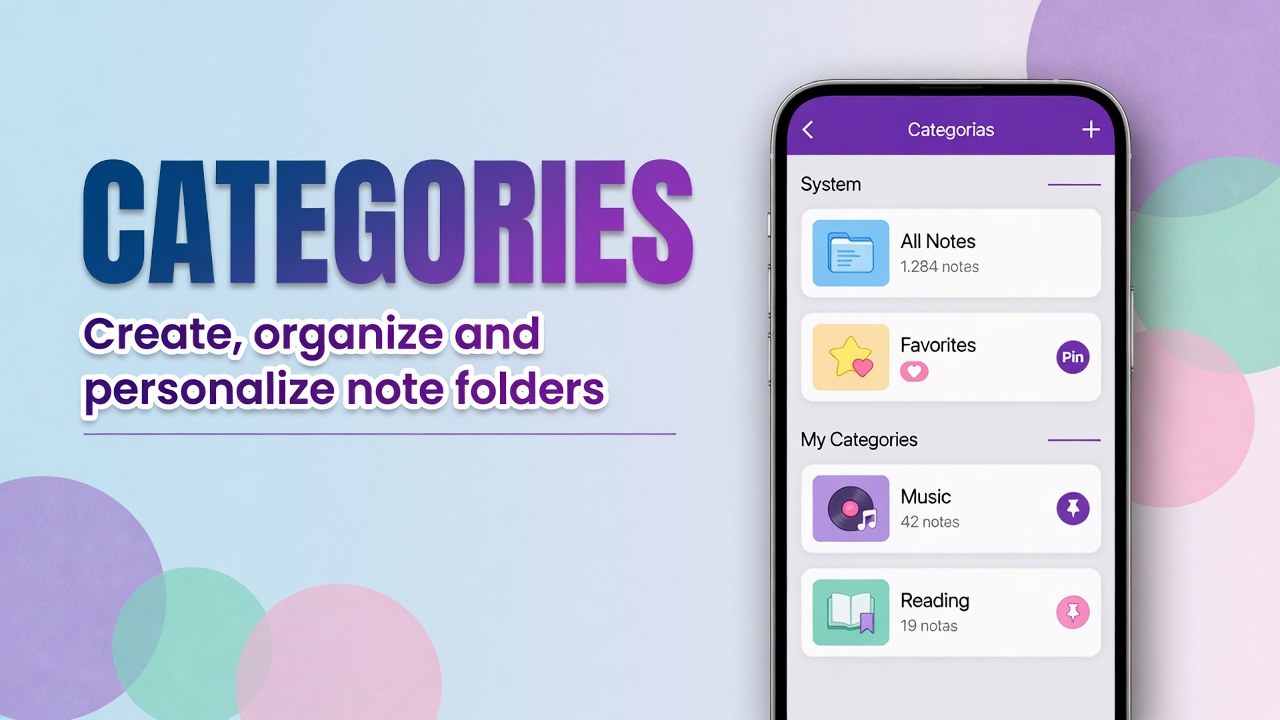
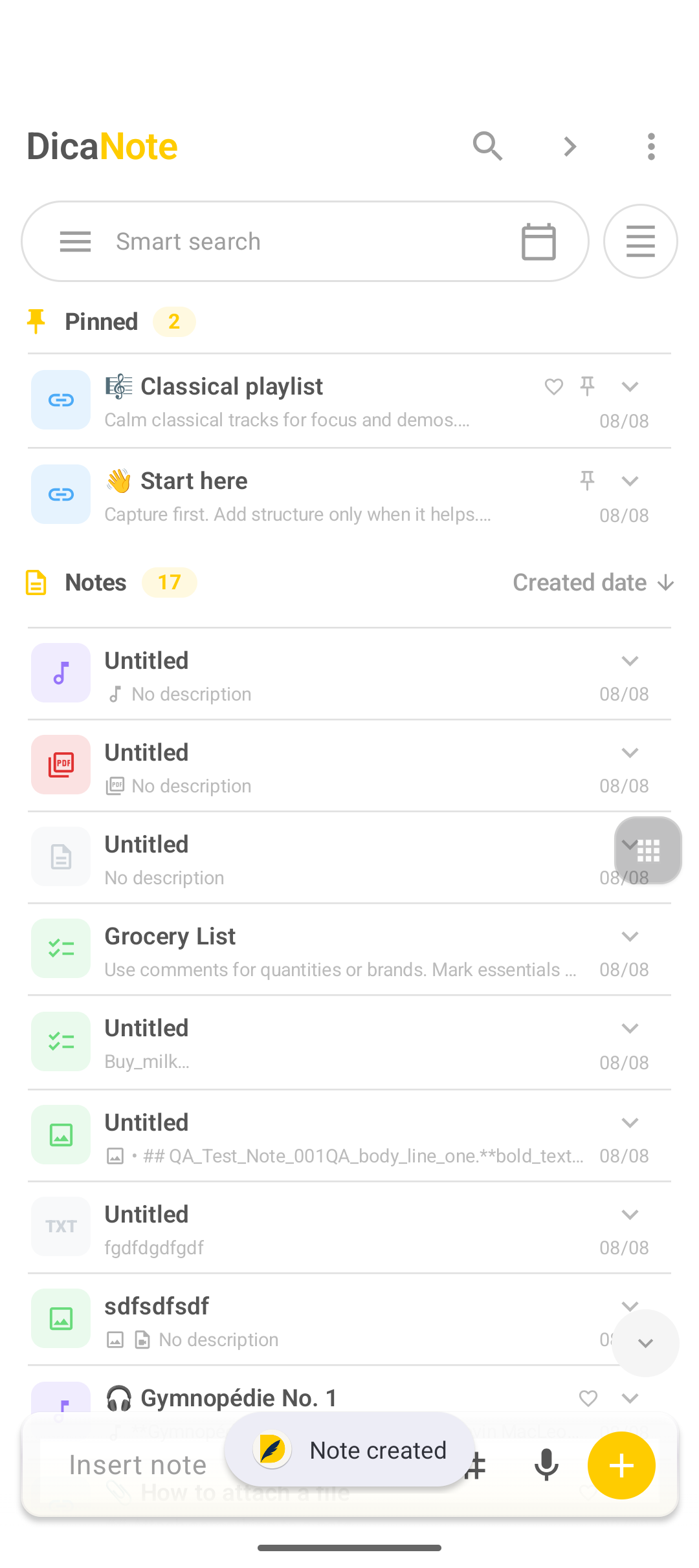
Pinned notes move to Pinned at the top, with a counter (e.g. Pinned 2).
- Open the note or use the preview.
- Tap the pin.
- Return to the list: the note is under Pinned.
Unpin: tap the pin again or use Unpin in bulk selection.
Favorite
The heart marks a favorite. It is not the same as pin: favorite highlights; pin sends the note to the top block.
Use favorite for “I want to find this easily” and pin for “I want to see this when I open the app”.
List layout
At the top, next to search, the Change layout button cycles modes (e.g. Dense, Grid).
| Mode | Best for |
|---|---|
| Dense | Many notes, bulk selection, merge |
| Grid | Visual preview; long-press may open only one note’s preview |
If multi-select fails in Grid, switch to Dense and try again.
Sorting
Next to Notes you see the criterion (Created date, etc.) and the sort arrow. Tap to invert when a new note is not where you expect.
Bulk actions
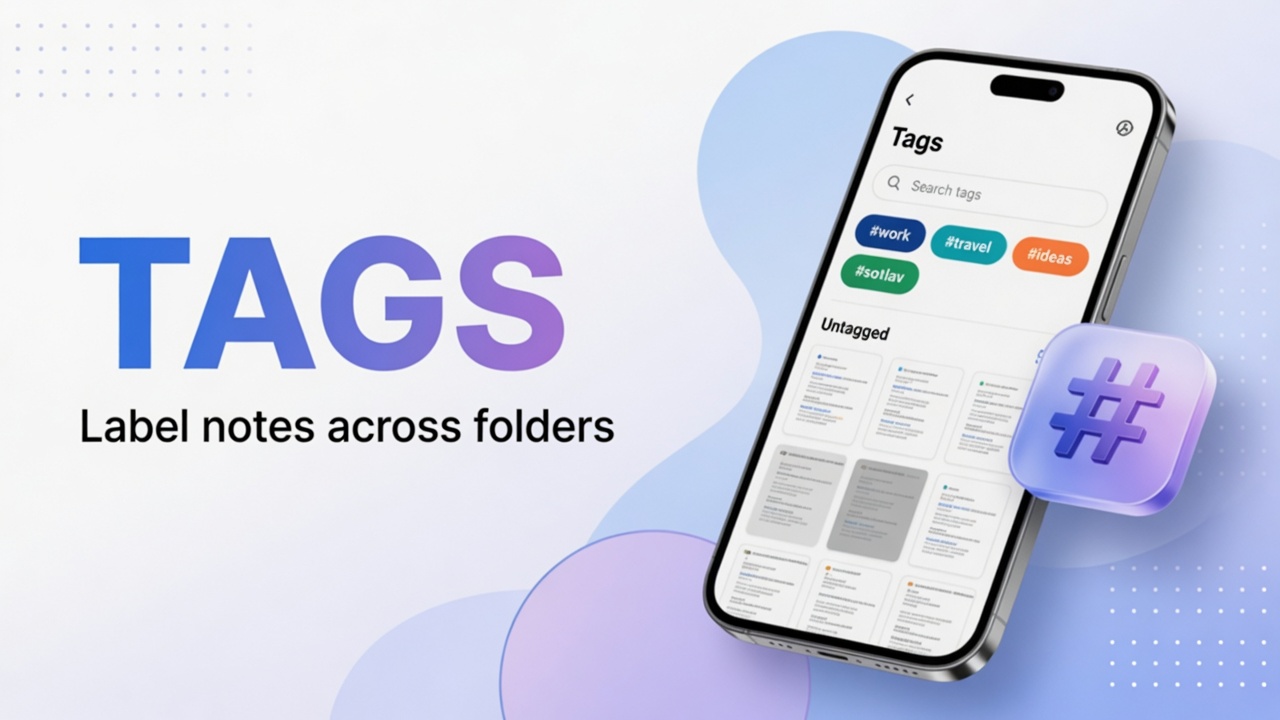
With two or more notes selected: Categories, Tags, Share, Copy, Merge, Favorite, Pin, Archive, Delete. Guide: select notes in bulk.
FAQ
What is the difference between pin and favorite?
Pin places the note in the Pinned block. Favorite marks the note without necessarily moving it to that block.
Can I pin as many as I want?
Yes, but if you pin dozens the top stops being a shortcut. Pin what you use every week.
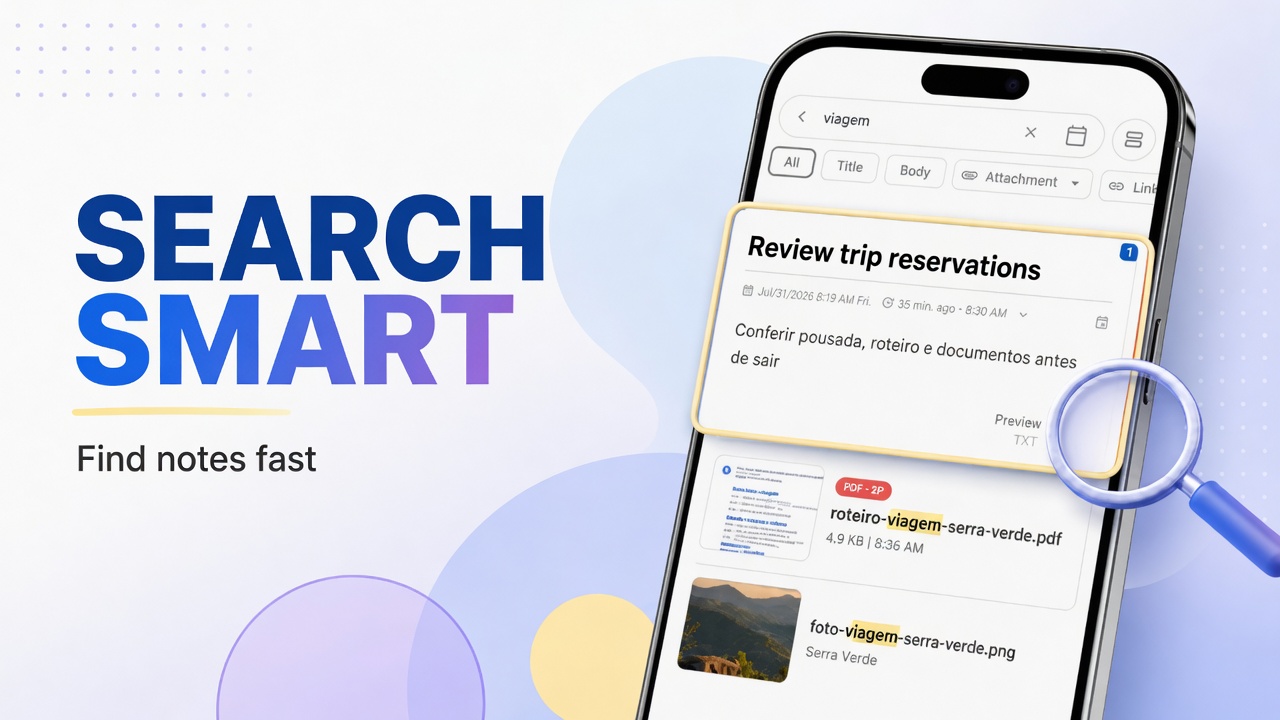
Does layout affect search?
Not the results — only how the list is drawn.
Does Archive hide the note?
Archived notes leave the active list. You can find them again via search or an archived filter, if your version has one.