Beyond text and attachments, DicaNote has a drawing editor. Use it for a sketch, mind map, diagram, or a quick doodle you do not want to lose on paper.
To open a new drawing: tap + and choose Drawing. The full create menu is in Create note, template, checklist or drawing.
What you see on screen
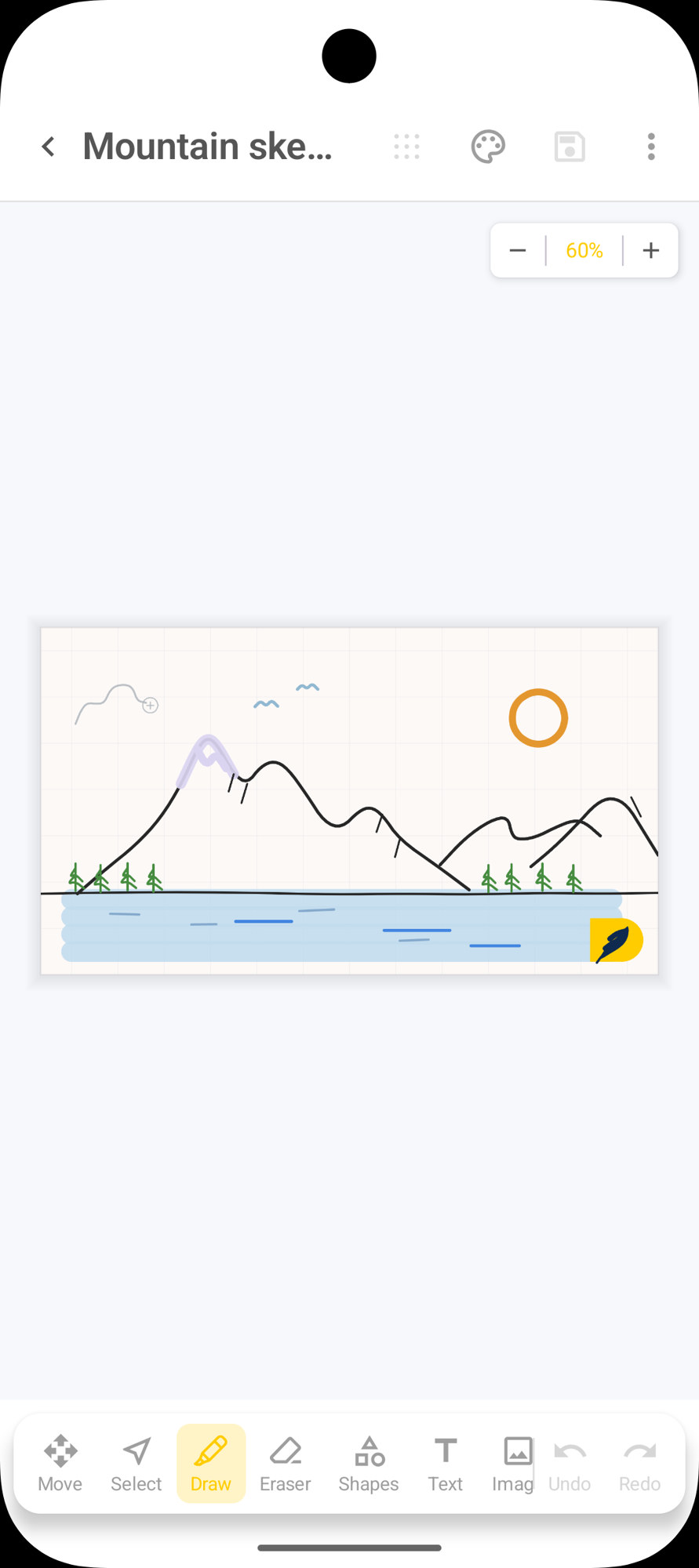
- Title at the top (e.g. Mountain sketch) — tap to rename.
- Zoom (for example 60%) with − and + buttons in the corner.
- Canvas with a grid where the drawing lives.
- Bottom bar with the tools.
A yellow brand icon often sits in the canvas corner; the real work area is the center.
Toolbar tools
The app UI is in English. In practice:
| In the app | Meaning | Use |
|---|---|---|
| Move | Pan | Moves the view of the canvas |
| Select | Select | Picks a stroke or object to move |
| Draw | Draw | Freehand pen / stroke |
| Eraser | Eraser | Removes what you pass over |
| Shapes | Shapes | Rectangles, circles, and similar |
| Text | Text | Text box on the canvas |
| Imag (Image) | Image | Inserts an image onto the board |
| Undo | Undo | Steps back one action |
| Redo | Redo | Redoes what you undid |
The active tool is highlighted (in the screenshot, Draw in yellow).
How to draw in practice
- Open or create a drawing (+ → Drawing).
- Tap Draw.
- Drag your finger on the canvas.
- Use Eraser if a stroke went wrong.
- Adjust zoom if the area feels small.
- Save with the disk icon at the top.
Want a cleaner line or circle? Switch to Shapes. Need a label? Use Text. Want a reference photo on the same board? Image.
Move and select
- Move helps when the drawing grew larger than the screen.
- Select lets you grab a piece and reposition it without redrawing from scratch.
If a stroke “does not take”, check that the right tool is active. With Move on, the finger pans the view — it does not draw.
Page size
The canvas does not have to stay at the default size. In the editor’s three-dot menu (⋮), tap Page size.
The panel subtitle makes the behavior clear: Resize the page without scaling your drawing — the artwork does not stretch; only the page area changes.
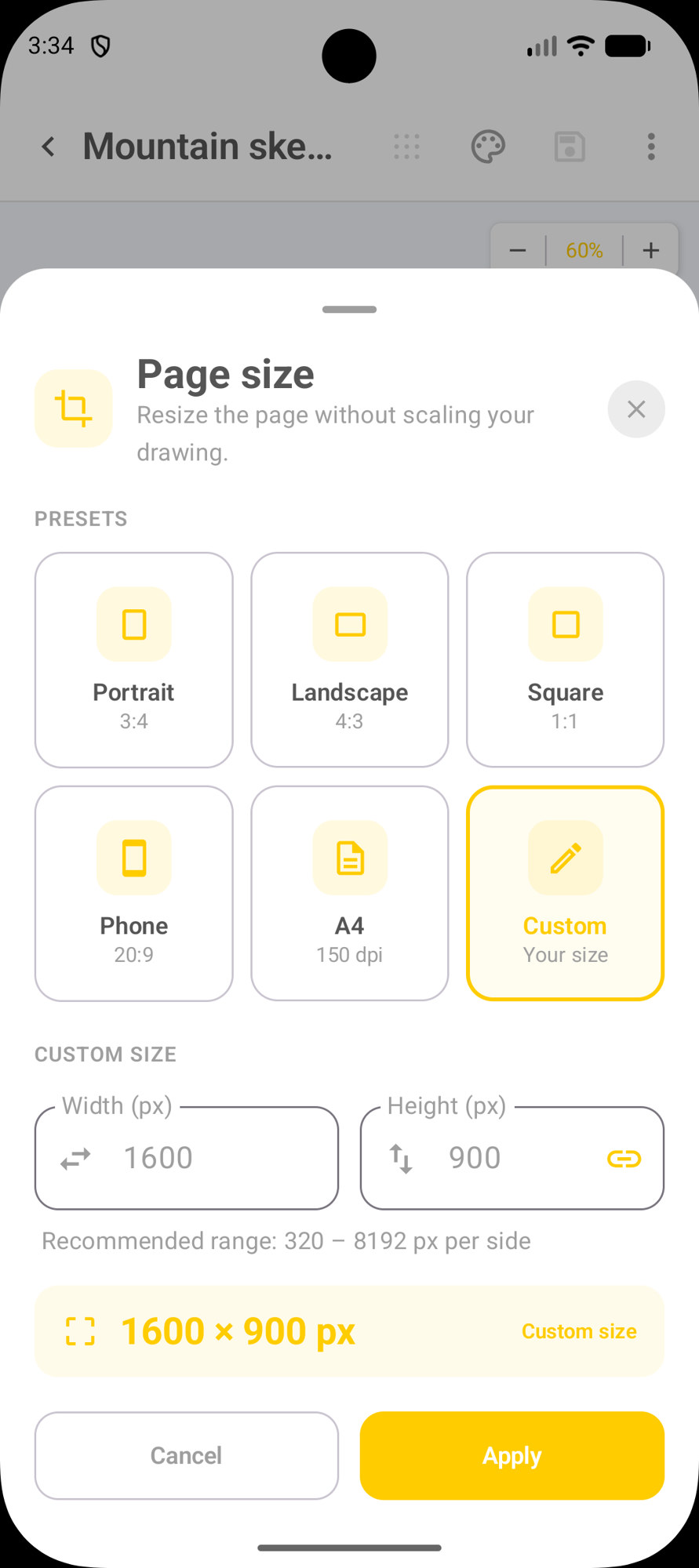
Presets
| In the app | Ratio / detail | Typical use |
|---|---|---|
| Portrait | 3:4 | Tall page |
| Landscape | 4:3 | Wide page |
| Square | 1:1 | Post, icon, square art |
| Phone | 20:9 | Phone-screen proportion |
| A4 | 150 dpi | Close to A4 paper |
| Custom | Your size | Width and height in px |
Custom size
With Custom active, fill in Width (px) and Height (px). The app recommends between 320 and 8192 px per side. The lock next to the fields keeps the aspect ratio when you change one value.
In the sample screen: 1600 × 900 px. Tap Apply to apply or Cancel to abort.
Menu ⋮ and Save as
In the upper-right of the editor, More options (⋮) gathers drawing shortcuts:
- Focus mode — fewer distractions on screen
- New — new drawing
- Page size — page size (above)
- Create note / Open — create or open
- Save as — save to a file
- Share as — share
- Copy link / Delete
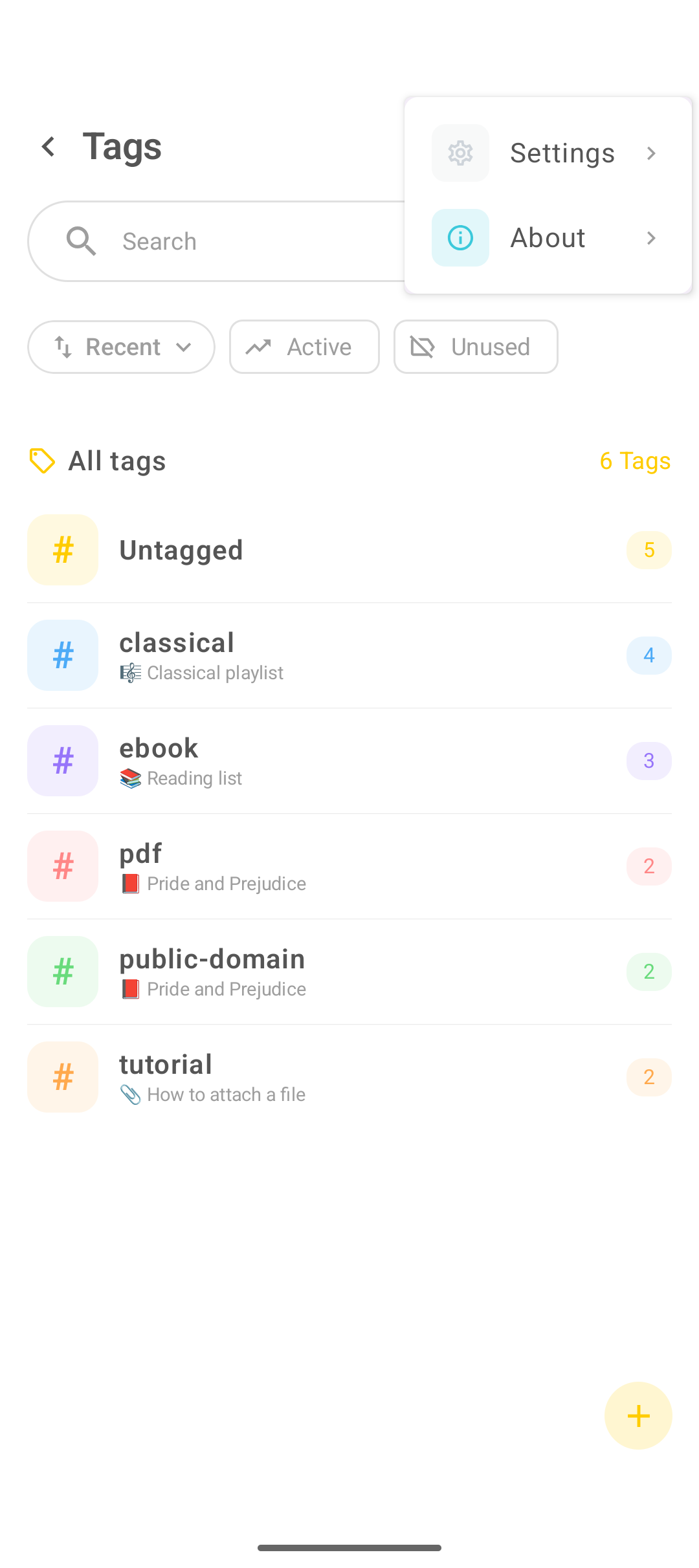
Save as (export to a file)
- In the editor, tap ⋮.
- Tap Save as.
- The Android file picker opens (Downloads, folders, etc.).
- Choose the location and confirm the file name (e.g.
drawing-….svg). - Confirm the save (SAVE).
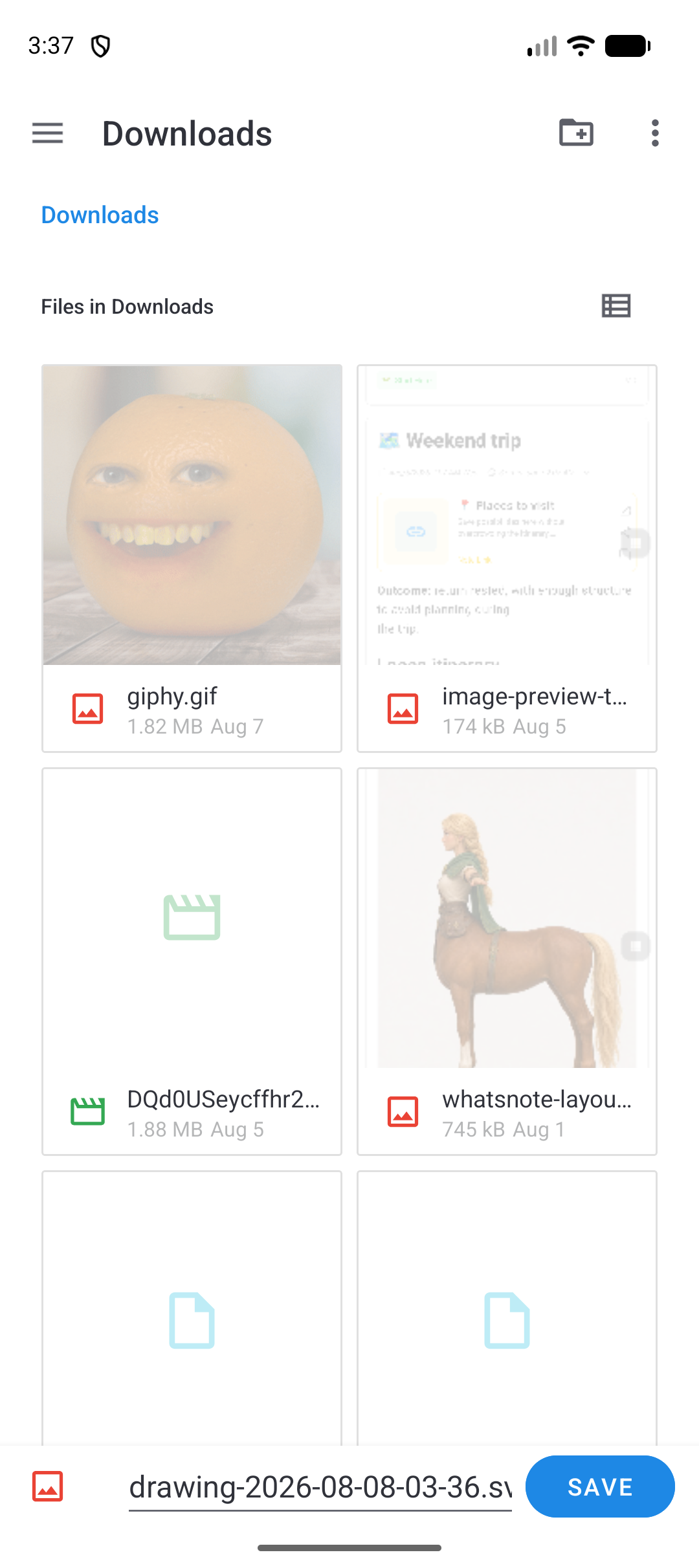
Save (disk icon at the top) stores the drawing note inside DicaNote. Save as exports a file on phone storage — useful for email, another app, or a loose backup copy.
Share as sends the drawing without necessarily picking a folder in the file manager.
Save in the DicaNote library
Besides the file export, the drawing is still a note. Use the disk at the top so you do not lose work. Afterward you can pin, categorize and tag it like any note.
When to use drawing (and when not)
It makes sense for a UI sketch, map route, idea diagram, or quick croquis.
Prefer a text note if the content is a list, long paragraph, or checklist. Prefer PDF if the file already came ready from another app.
FAQ
How do I create a new drawing?
Tap the yellow + and choose Drawing. The editor opens with a blank canvas (or a template, if the app offers one).
Can I undo a stroke?
Yes. Use Undo on the bar. Redo redoes what you undid.
Can I put text on the drawing?
Yes. Tap Text, tap the canvas and type. Useful for captions and labeled arrows.
Does the drawing live only on the phone?
It lives in the DicaNote library with your other notes. With Save as you can still write a file (e.g. SVG) to Downloads or another folder.
Does changing Page size stretch the drawing?
No. The panel is explicit: the page resizes without scaling the drawing. Content does not get “stretched” like a simple image resize.
What is the difference between Save and Save as?
Save stores the note in DicaNote. Save as exports a file on device storage through the Android folder picker.
For a photo or PDF instead of a sketch: attachments and scan.