Many people tap + and think DicaNote only opens a blank page. Not quite. The app shows a menu with four paths. Picking the right one at the start saves taps later.
If you only want the write-and-save flow, How to create your first note in DicaNote covers the editor more slowly.
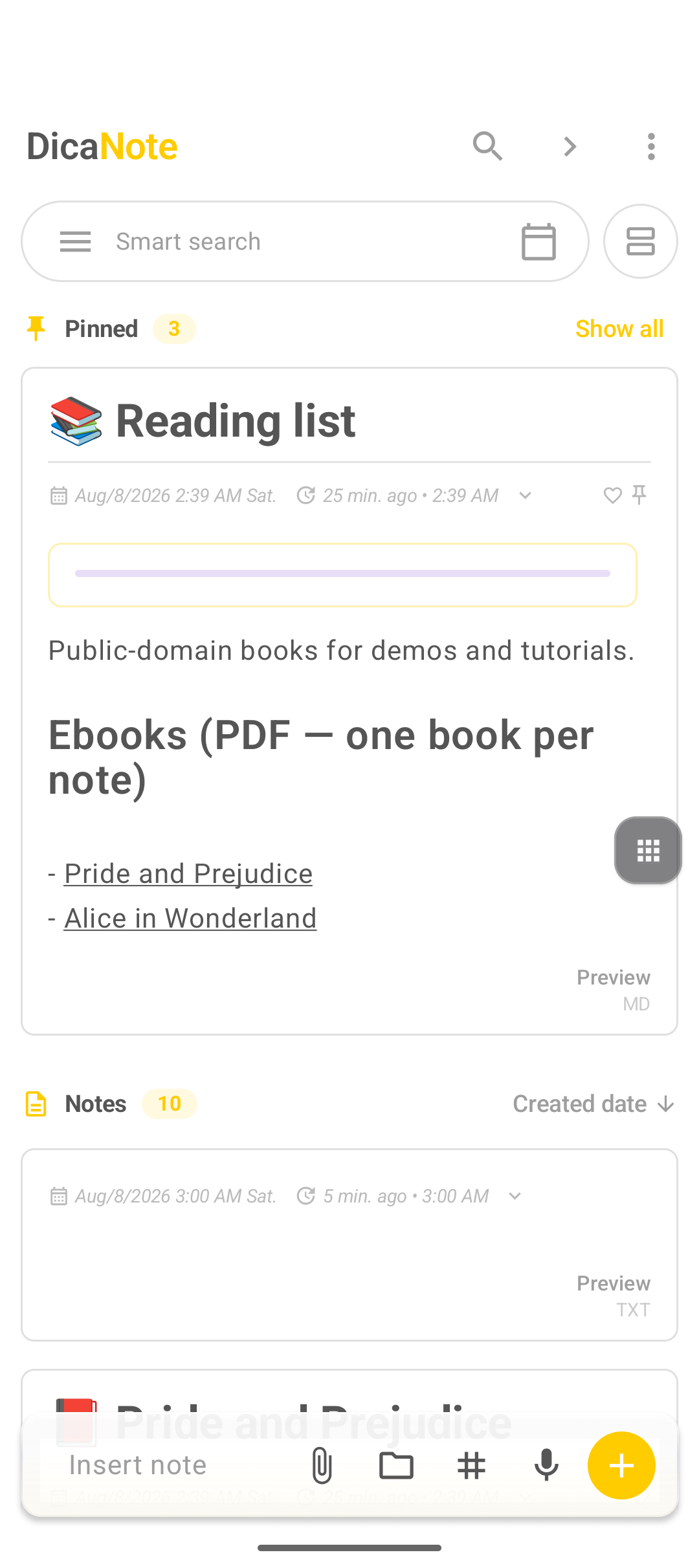
Open the create menu
- Open DicaNote.
- Tap the yellow +.
- Choose one of the four options.
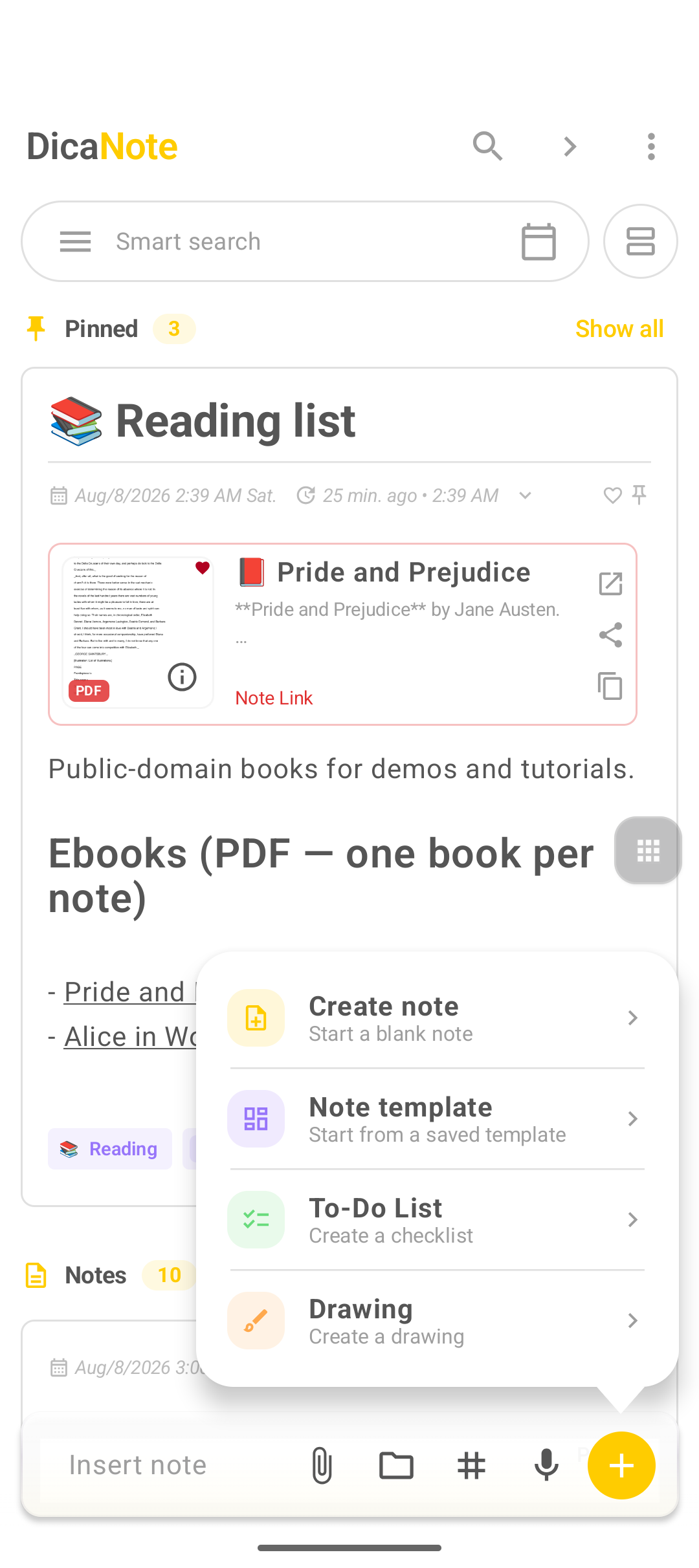
In the English app UI, the names look like this:
| In the app | Meaning | Best for |
|---|---|---|
| Create note | Blank note | Free text, quick idea, plan |
| Note template | Template | Start with a ready structure |
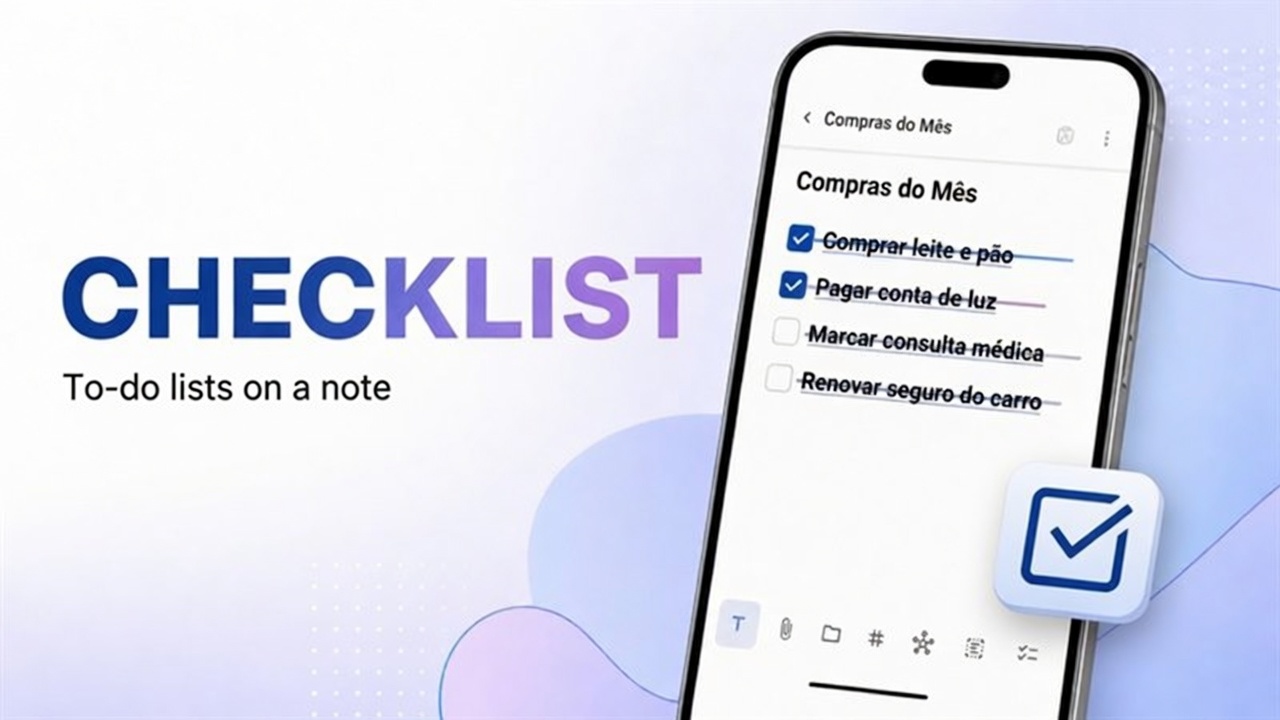
| To-Do List | Checklist | Checklist, shopping, packing |
| Drawing | Drawing | Sketch, mind map, doodle |
Tip: if you are unsure, use Create note. Checklist, category and attachments can be added later on the bottom bar.
1. Blank note (Create note)
- Tap +.
- Tap Create note.
- Put a title you will recognize later.
- Write in the text field.
- Save with the disk icon at the top.
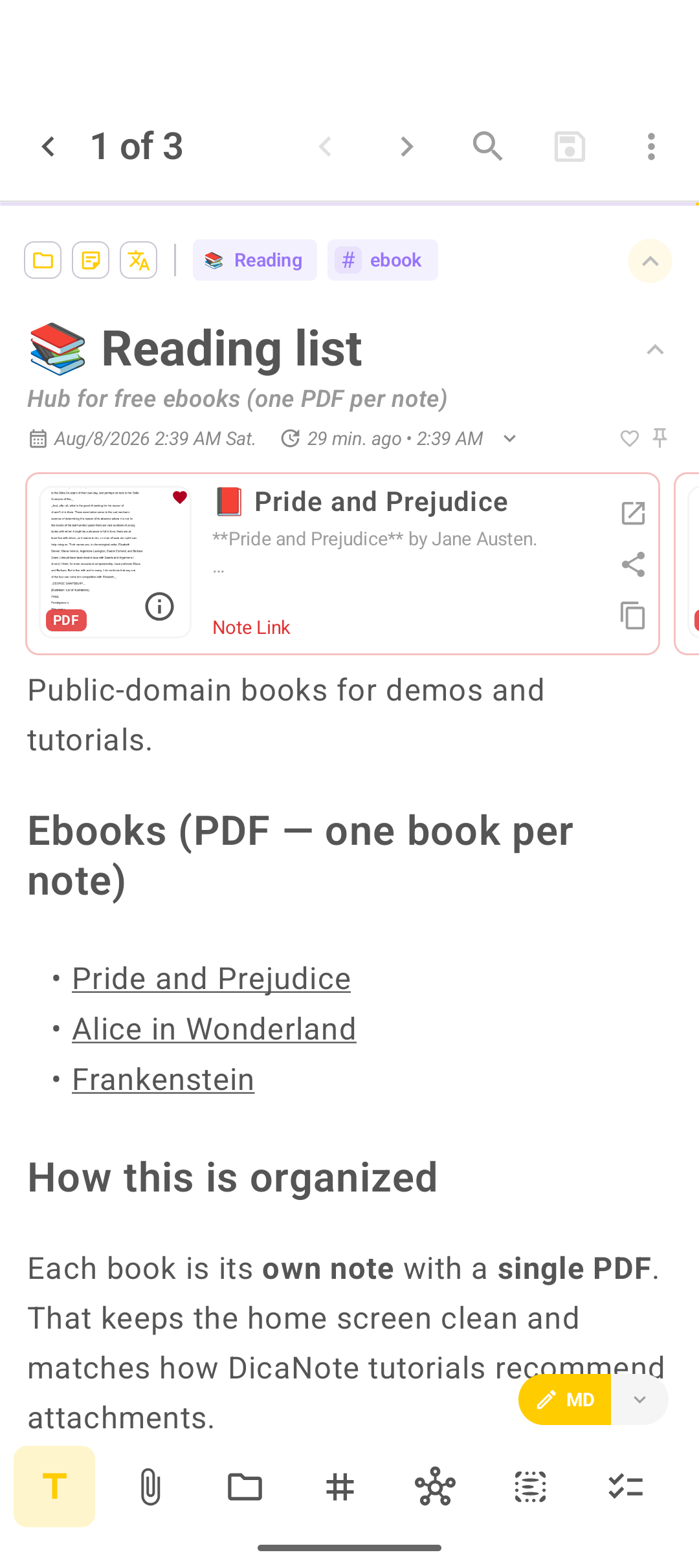
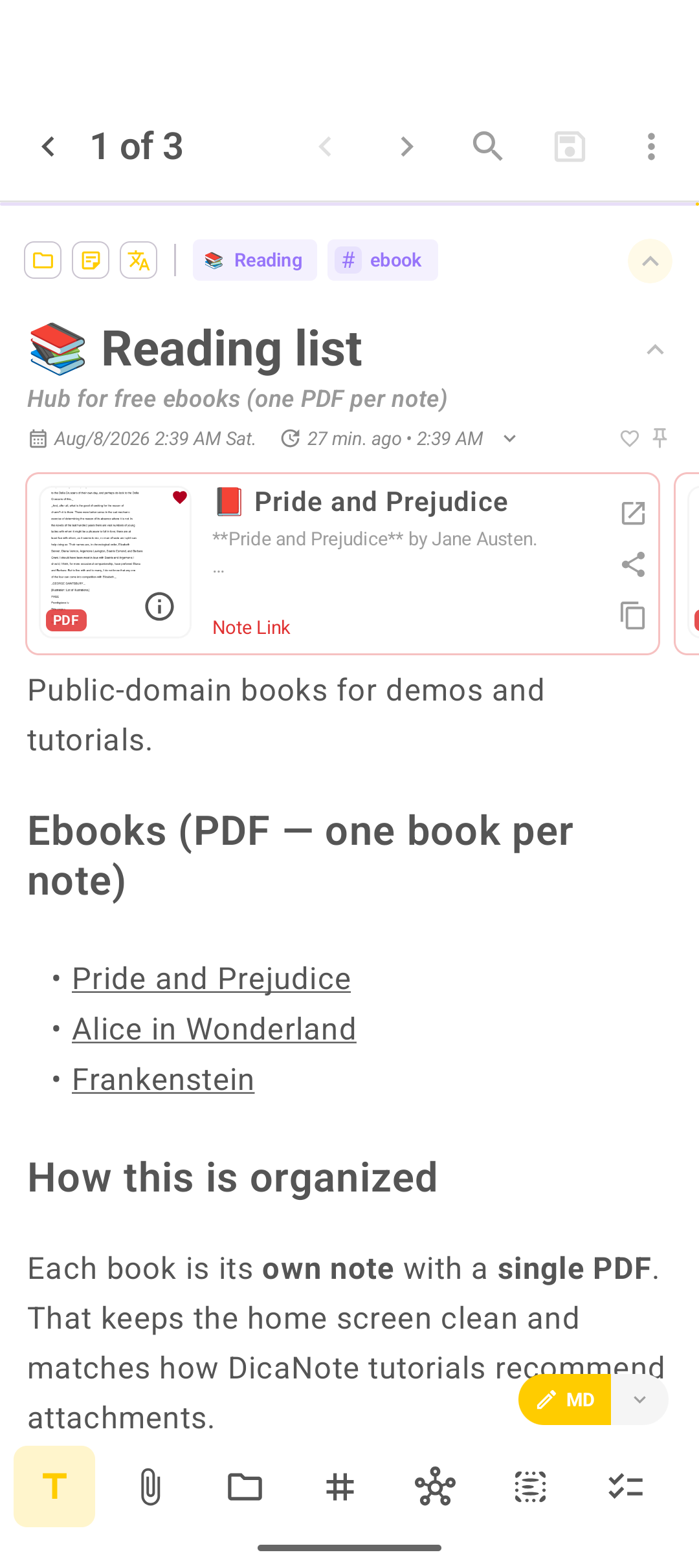
The note’s bottom bar has the essentials: formatting (T), paperclip for attachments, folder for categories, # for tags, note links, and checklist.
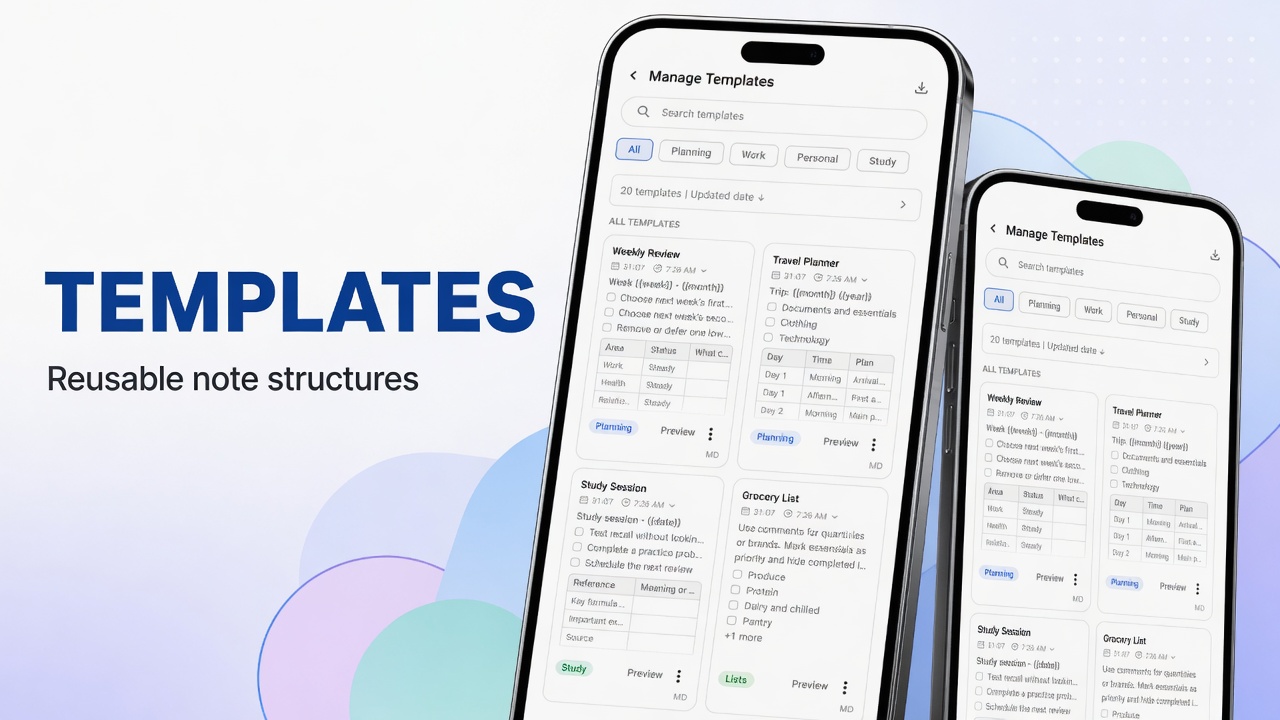
2. Template (Note template)
- Tap +.
- Tap Note template.
- Use the tabs (Planning, Work, Personal, Study) or search.
- Open a template, for example Travel Planner or Grocery List.
- Fill it in and save.
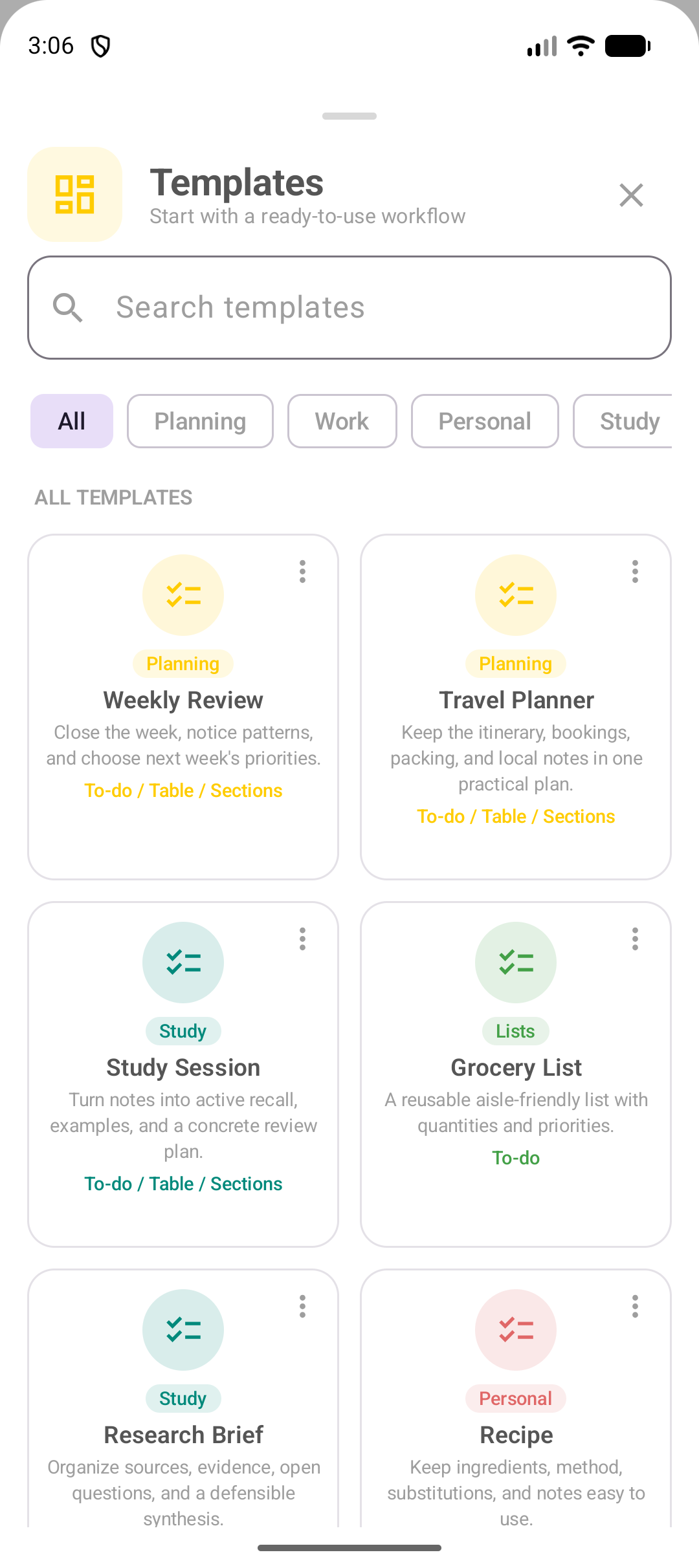
Worth it when you repeat the same structure every week. Full guide: How to use note templates in DicaNote.
3. To-Do List
- Tap +.
- Tap To-Do List.
- Give it a title (e.g. “Weekly shopping”).
- Add items and check off what is done.
- Save.
If the item needs a time and a notification, the better path is tasks and reminders.
4. Drawing
- Tap +.
- Tap Drawing.
- Use the bar tools: draw, erase, shapes, text.
- Save.
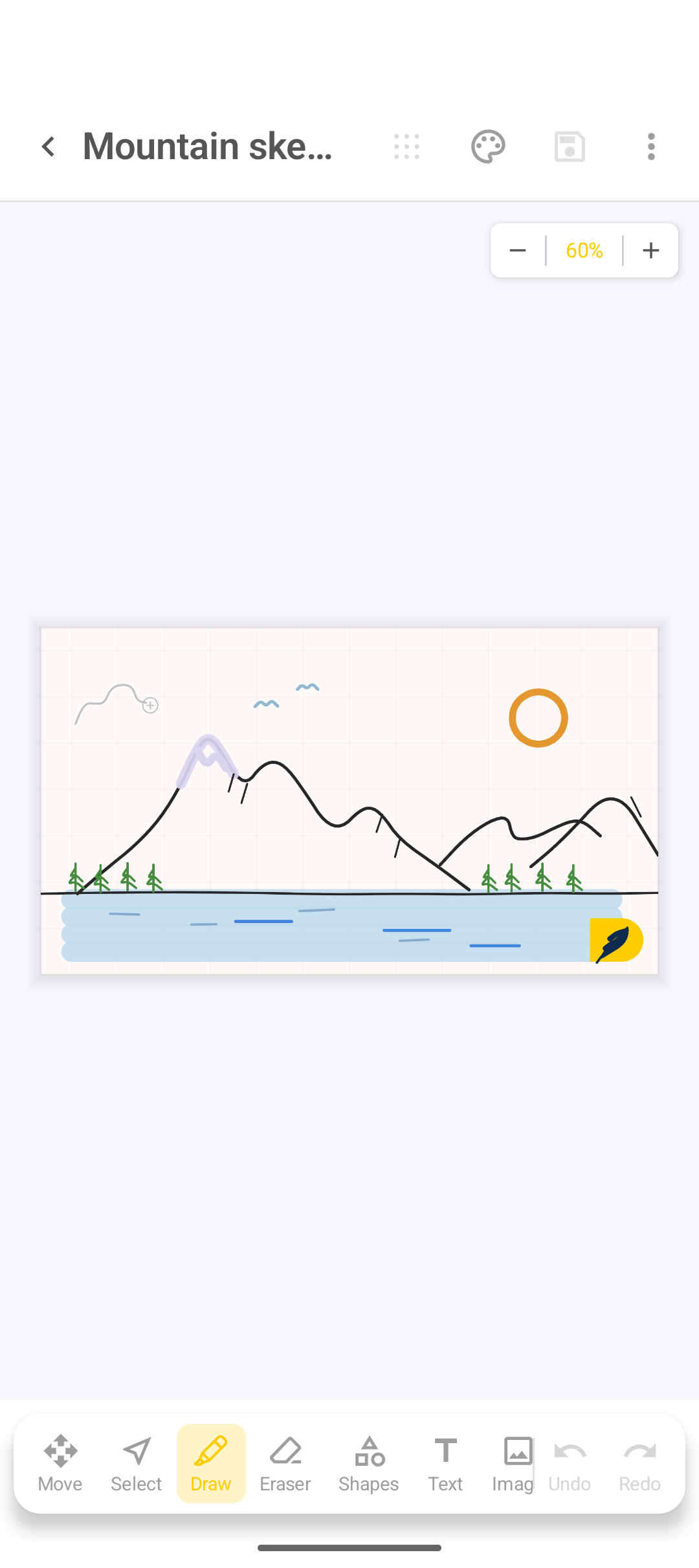
Good for a visual draft. If the idea is a PDF or audio, leave it in another note. A clean card on home makes the important things easier to find.
After creating: categories and tags
With the note open:
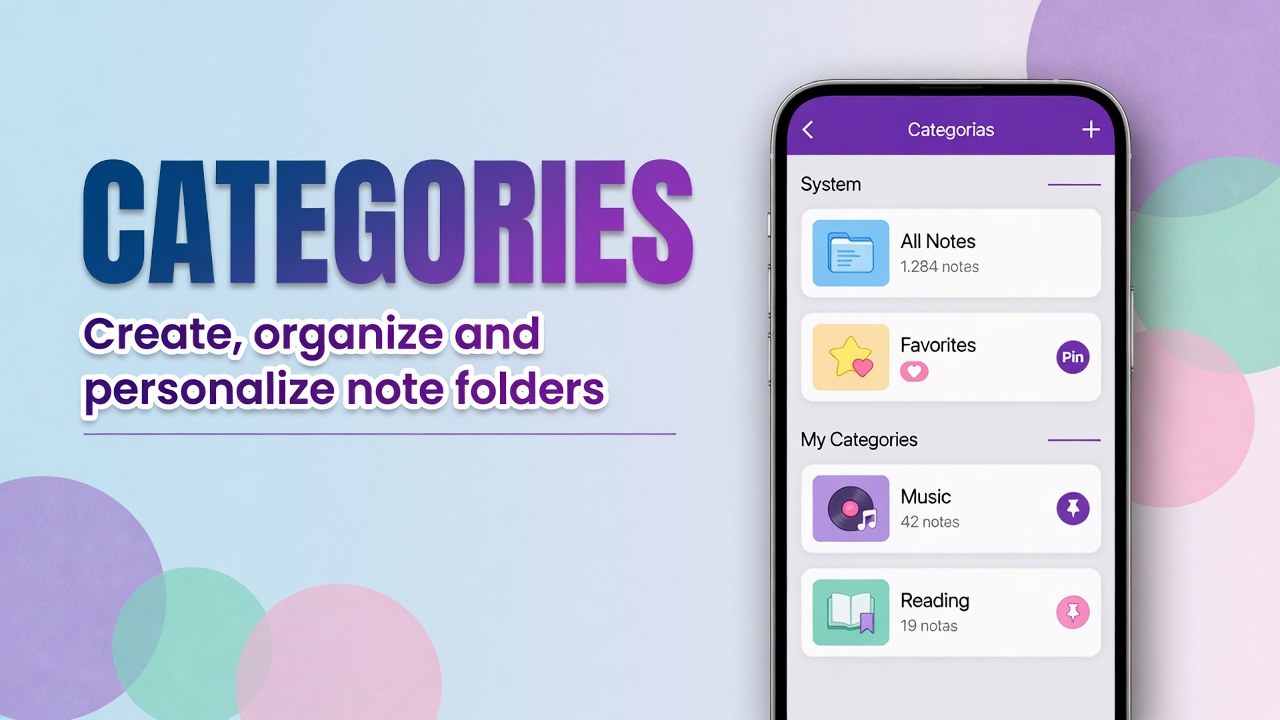
- Tap the folder and assign (or create) a category.
- Tap # and add tags such as
urgentorebook. - Pin with the pin icon if you want the note at the top.
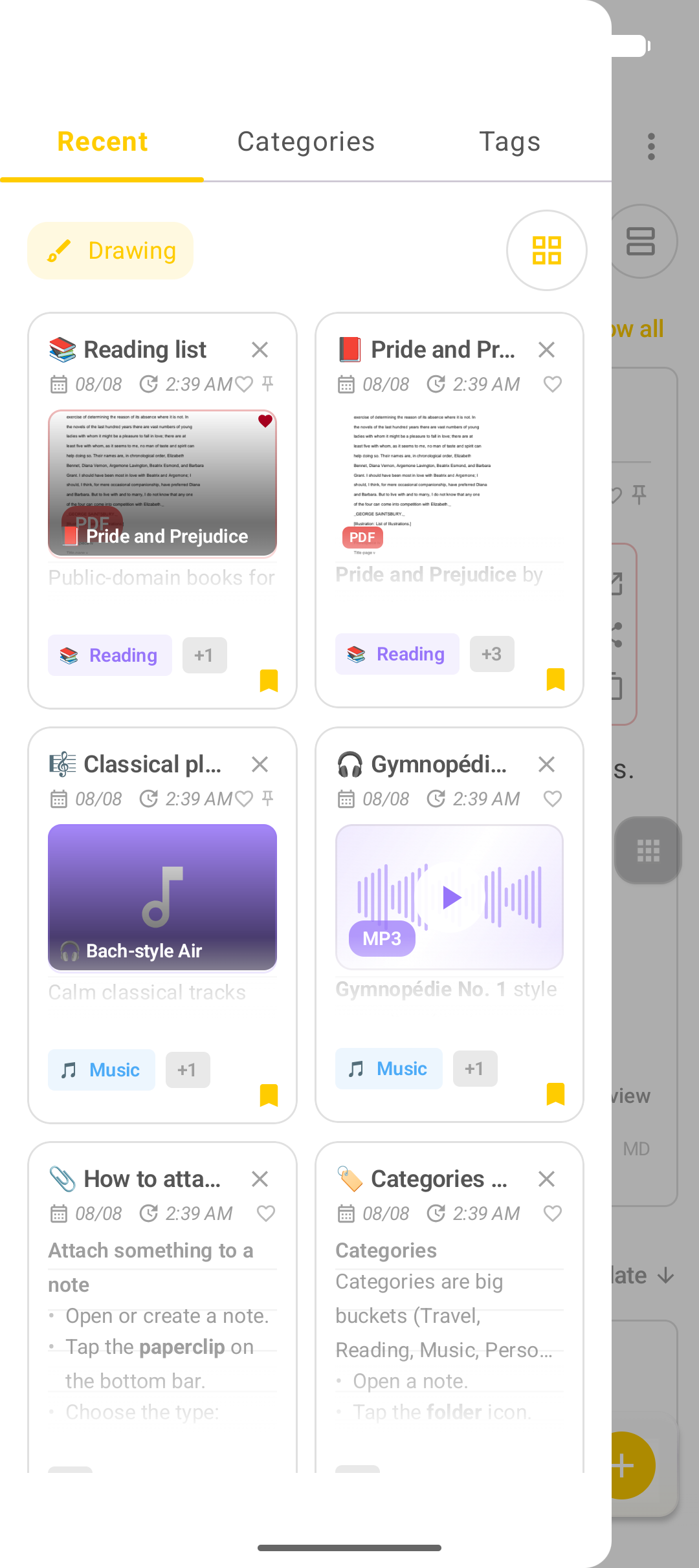
On home, the menu icon in the search bar opens the panel with Recent, Categories and Tags.
Full organization walkthrough: How to organize notes with categories and tags.
Which option should you use?
- Loose text → Create note
- Structure you repeat → Note template
- Several items to check off → To-Do List
- Visual draft → Drawing
After creating: next guides
- Markdown in the note body
- Checklist in detail
- Drawing (tools and Page size)
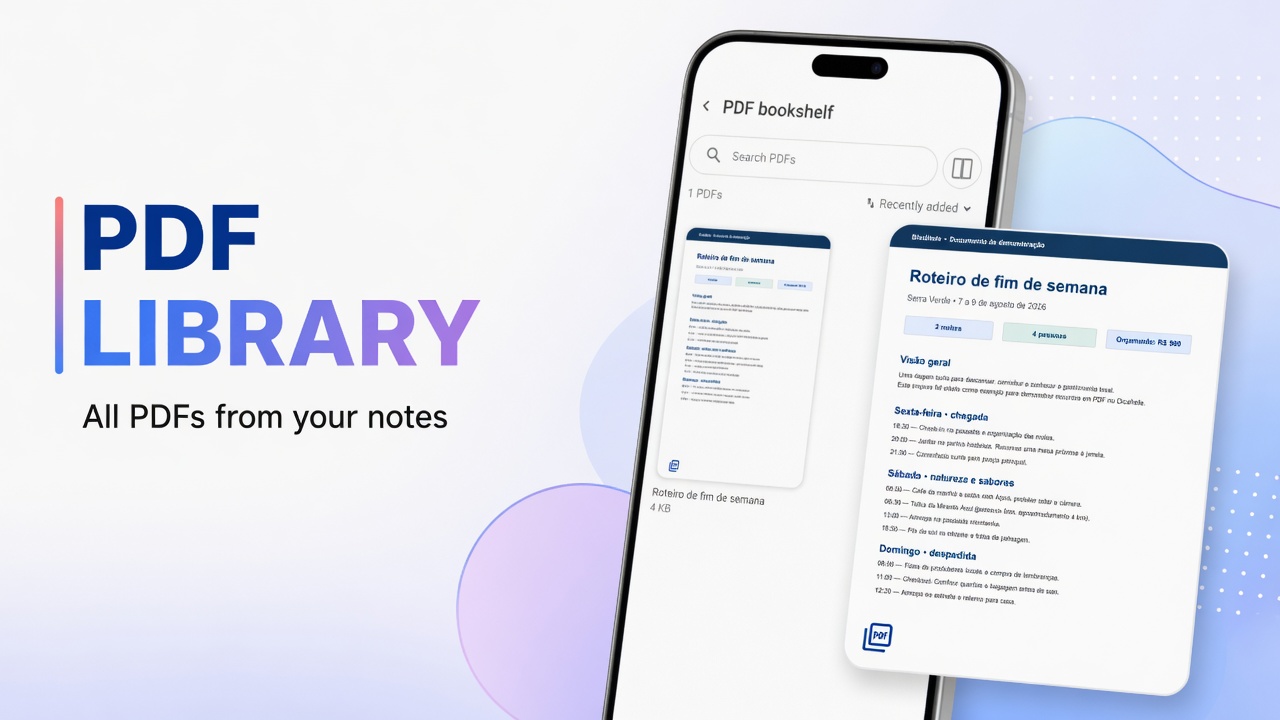
- Attachments and media
- Getting started if you just installed
FAQ
Does + only create a blank note?
No. There are four options: note, template, to-do list and drawing. Blank is only the first in the list.
I chose a list and then wanted long text. Now what?
Content stays in the note you created. You can mix text and checklist in the same note. Or create another note of the right type and link the two.
Where does the new note appear?
In the Notes list on home. If you pin it, it moves up to Pinned.
How do I create a category and a tag?
Open the note, use the folder and the hash. Guides: categories and tags.