Property visit video, product demo, class clip: in DicaNote the file sits with the text that explains the context. Two paths in the attachments panel — Video (camera) and Video Files (gallery).
Attach from the gallery (Video Files)
- Tap the paperclip.
- Tap Video Files (Add video from device).
- In the Android picker, choose the video. The system may warn that the app only accesses what you select.
- Tap Done.
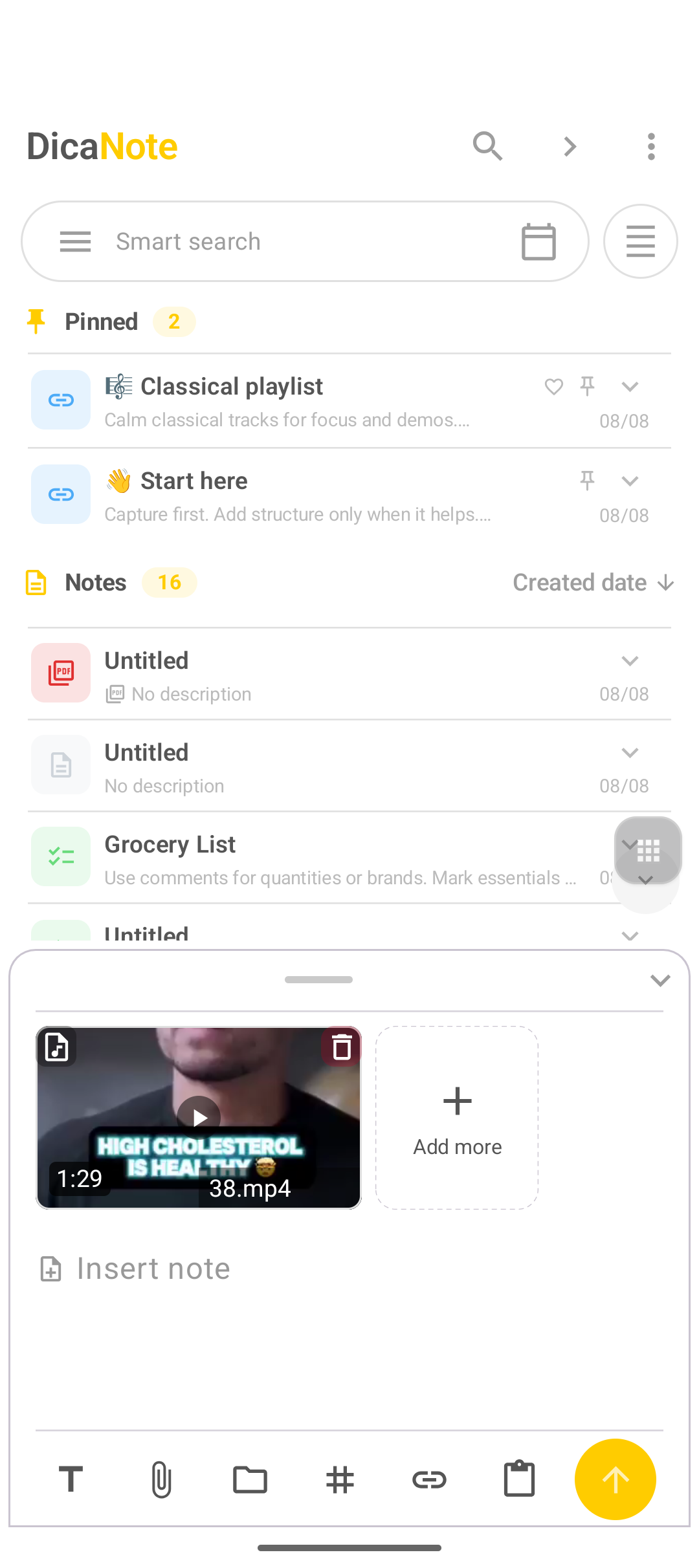
- Check thumbnail, duration and name. Use Add more for another attachment.
Record with the camera (Video)
- Paperclip → Video under Capture.
- Allow the camera if Android asks.
- Record and confirm.
- The clip enters the note.
Large files fill the phone. Prefer short clips or keep the original elsewhere.
After attaching
- Write what the video shows (“back door”, “bug at 0:40”).
- Tap the thumbnail to play.
- Attachment trash if it is the wrong file.
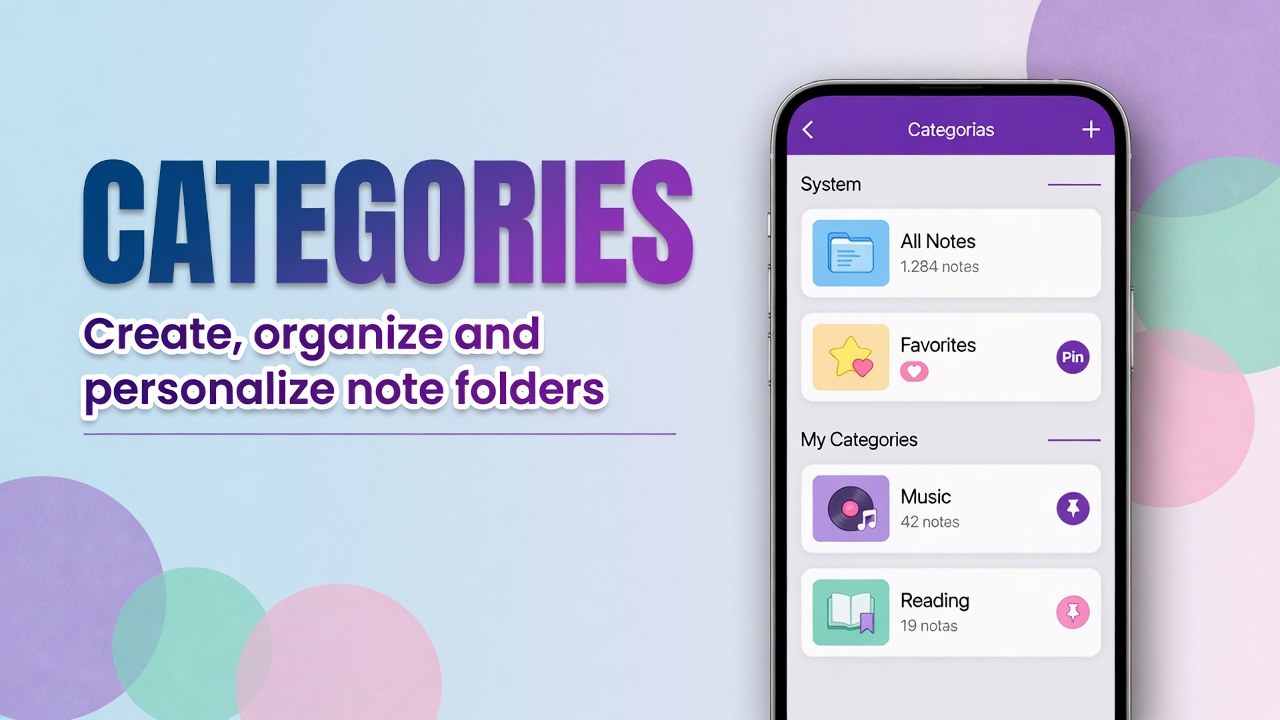
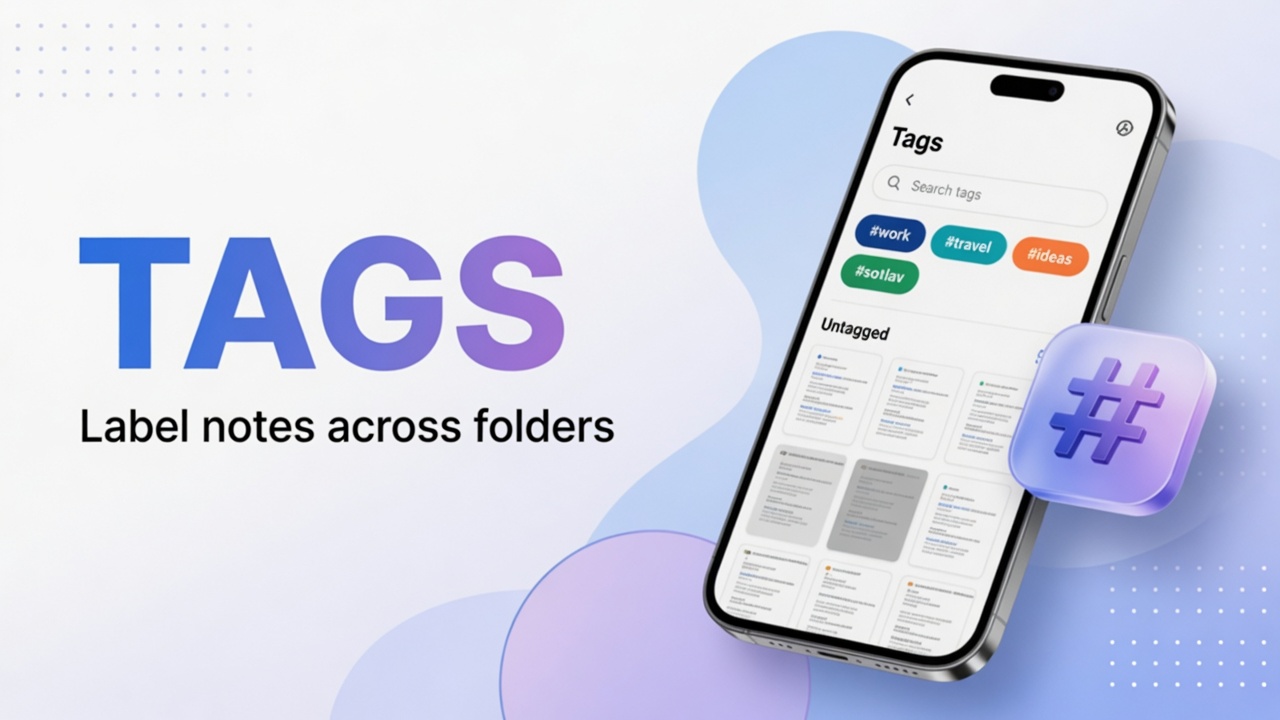
- Category and tags help search.
- All files: Attachments.
Video + other attachments
The same note can hold video, audio, PDF and text. Use Add more or open the paperclip again.
Overview: attachments.
FAQ
Which format works?
Usually phone-camera MP4. Exotic pro-editor files may fail preview.
Does the video go into backup?
Treat attachments as part of the note. Create a backup before clearing the app and check the file size.
Can I have video and audio on the same note?
Yes. Add more or paperclip again.
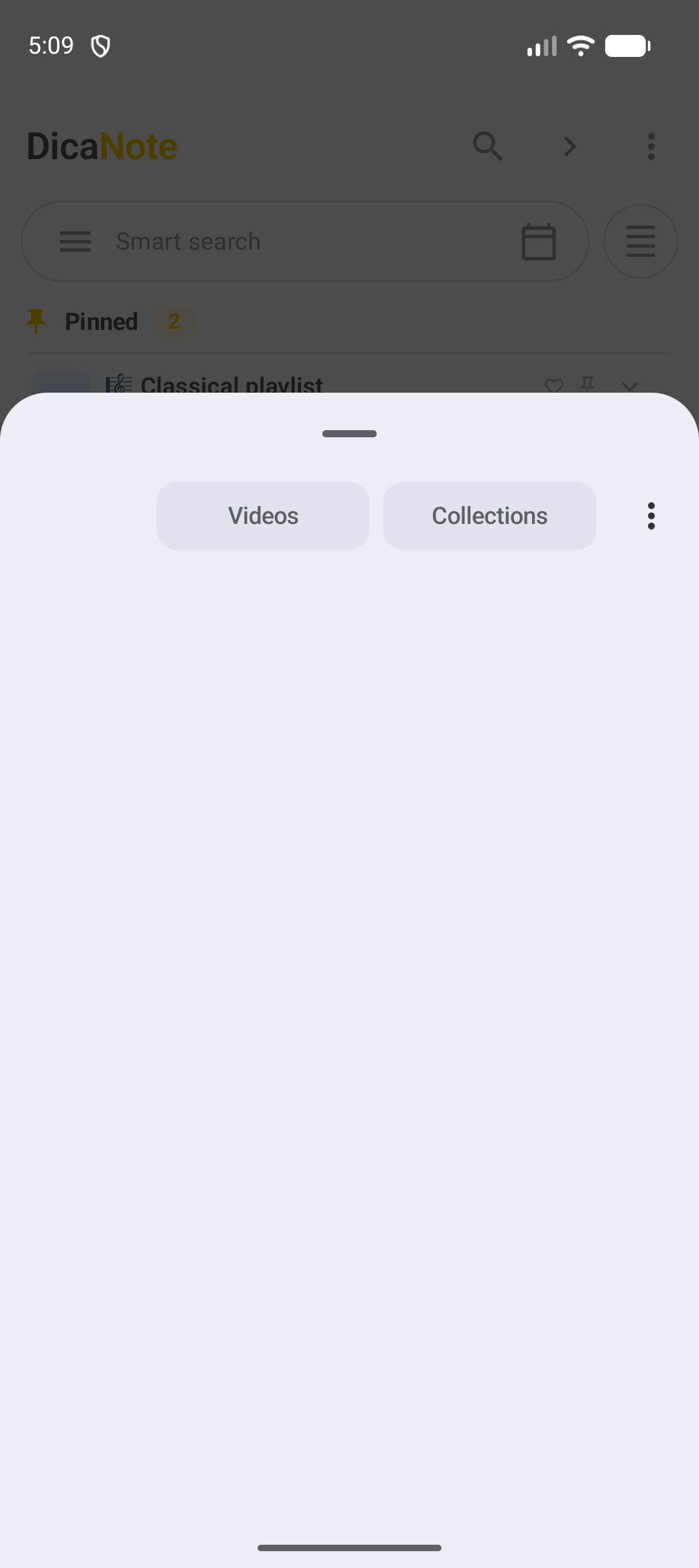
The picker shows “photos” but I want video
Stay on the Videos tab of the Photo Picker. Collections or other tabs may list only images.